How to Use Codex CLI: Your First Task, Review and Approval
Short answer
Your safest first task is an inspection, not a large implementation. Ask Codex to find one behavior in one part of the repository and return exact file references without editing anything. You will learn how it reads the project while keeping the cost of a wrong assumption close to zero.

Before you start
You need a project you are allowed to inspect and a terminal opened in that project's directory. If Codex CLI is not installed, OpenAI lists this npm command as one official option.
npm install -g @openai/codex
Run codex --version to confirm the command is available. Make a clean Git checkpoint before the task. OpenAI recommends Git checkpoints before and after a task so you can revert a change if needed.
The first-task workflow at a glance
Keep the loop simple: open the right project, check the boundary, ask one precise question, inspect the support, run the focused check and make the approval decision yourself.
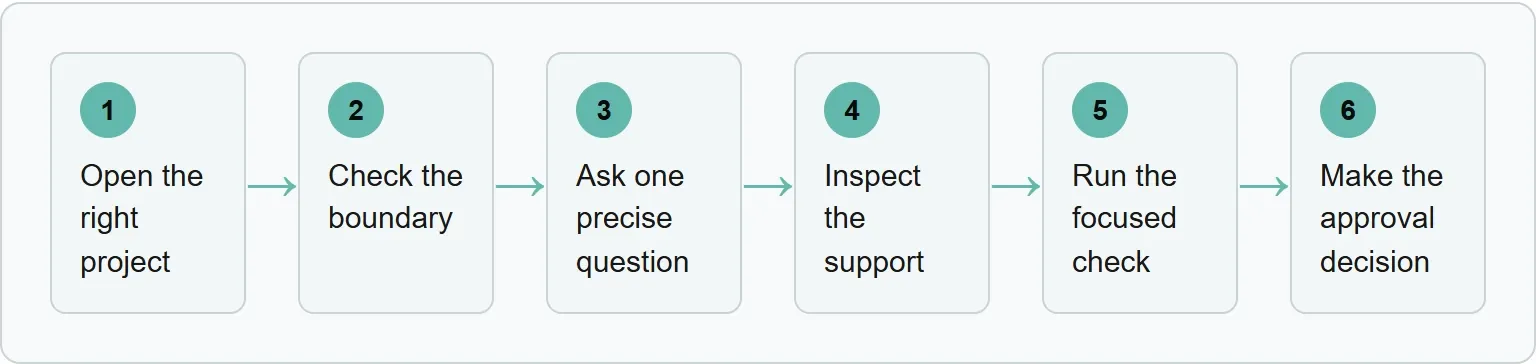
Step 1: open the project and run Codex
Start in the repository you want the CLI to understand. The working directory defines the project context it can inspect. OpenAI's official quickstart tells users to run their first task from a project directory.
cd path/to/your-project codex
On the first launch, Codex offers ChatGPT and other available sign-in methods. The official repository recommends signing in with ChatGPT for eligible ChatGPT plans. An API key is also possible, but OpenAI says that route requires additional setup.
Inside the session, /status shows the current configuration. Use /model only when you have a reason to change the model or reasoning effort. If the repository has no agent instructions, /init can create an AGENTS.md file. Read and edit that file like any other project instruction: keep it specific to the repository, version it with the code and do not use it as a dumping ground for one-off requests.
Step 2: choose permissions before the task
Type /permissions before your first change. The command shows when Codex may edit files or run commands without asking, together with the active sandbox and writable roots. Do not treat that screen as ceremony. It is the boundary between an answer you can inspect and an action that changes the project.
For the first task, open /permissions and choose Read Only. The CLI can then search and explain the repository while file writes remain outside the task. You can also launch the session with the same boundary:
codex -s read-only
You should see read-only as the active sandbox. Move to workspace edits only after you understand the target file, the expected change and the test that will prove it.
Task mode | Good first use | Main risk | Your review |
|---|---|---|---|
Read-only inspection | Find a code path, test or configuration | An incomplete or mistaken explanation | Open every cited file and line |
Focused workspace edit | Change one understood behavior | An unnecessary or incorrect diff | Inspect the diff and run the targeted test |
Broader automation | A repeatable workflow with known boundaries | Large scope and unintended commands | Review permissions, commands, outputs and rollback first |
Step 3: give Codex one bounded task
A useful first prompt names the target, asks one question, limits the output and states what the agent must not do. “Review this repository” gives no finish line. “Inspect this file, return the governing constant and one test path, and do not edit files” is testable.
Our exact first task
Inspect src/banner.ts. Return the one line that governs the maximum logo width and one test path that checks it. Use relative paths only. Do not edit files.
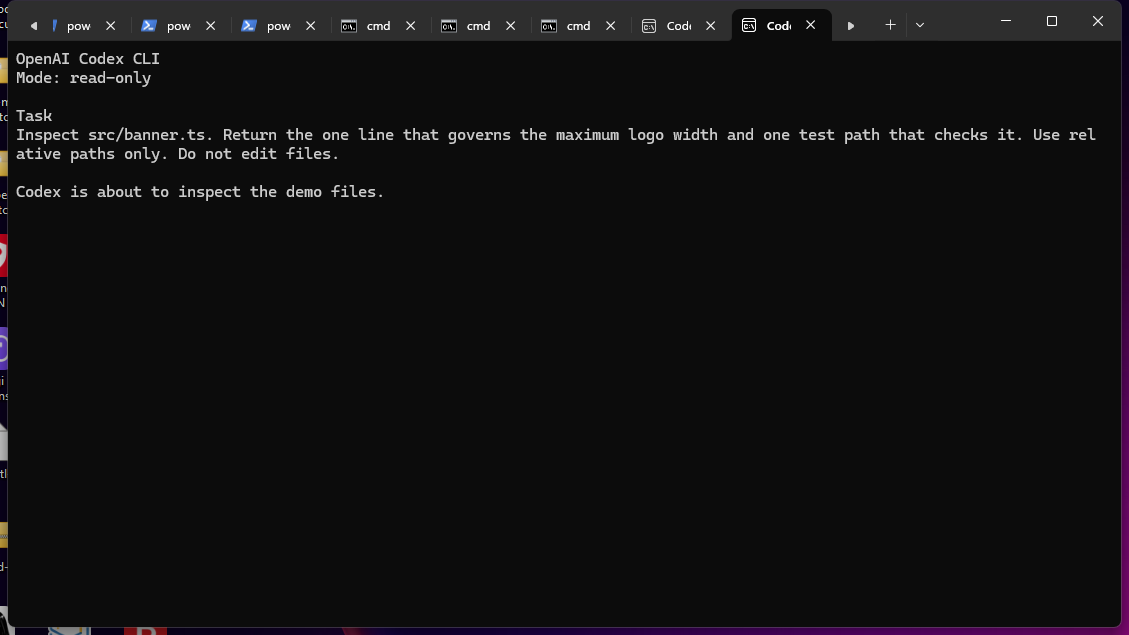
The prompt is short because every sentence does a job. The file path limits the search. The two requested outputs define success. Relative paths make the answer shareable. The last sentence prevents a simple inspection from turning into an edit.
Where Xtrusio uses the same source-and-approval rule
An agent answer becomes useful when the source details remain attached to the question. Xtrusio's managed workflow monitors agreed questions across supported AI engines and inspects the resulting answers, brand mentions and citations. The team then prepares a question-linked content plan, collects source material and obtains approval.
The principle is the same as a good agent task: define the question, preserve the support and keep approval with the person responsible for the decision. Xtrusio states explicitly that AI suggestions do not replace client approval.
Get your free AI visibility check
Step 4: inspect the result, not just the prose
A focused result is better than a general explanation because both claims can be checked against the repository.
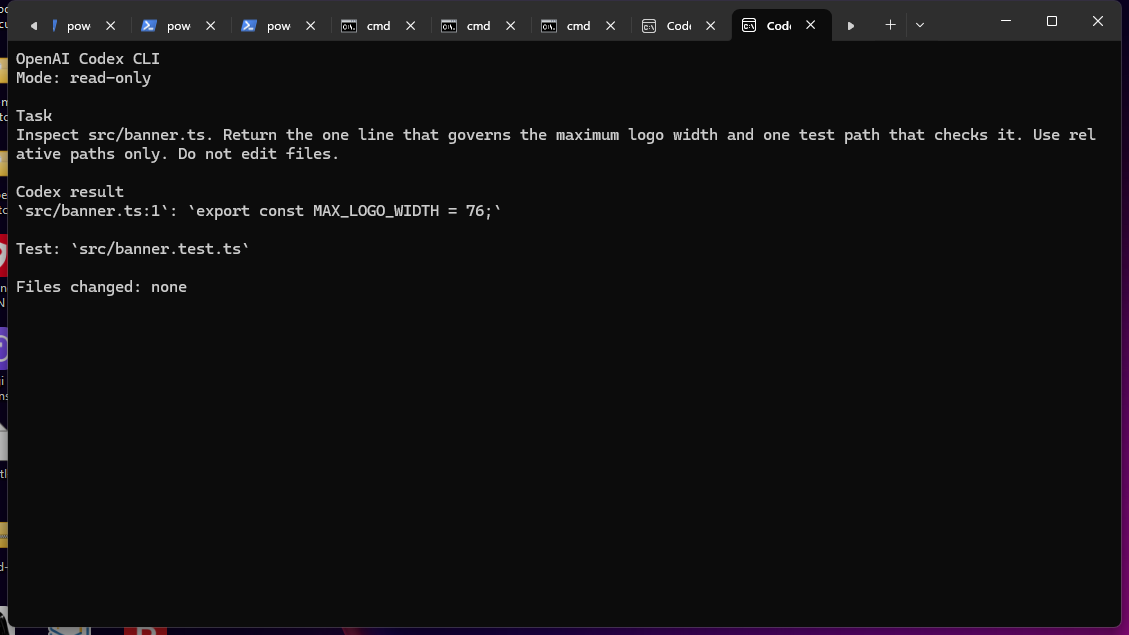
Open the cited code and test yourself. Confirm that the constant is used by the banner validation path, not merely declared nearby. Confirm that the test asserts the limit you care about. A file reference is support you can inspect, not proof by itself.
Separate the answer from process noise. If a warning could affect the requested work, investigate it. If it appears after a complete read-only result and does not change the output, record it without letting it obscure the actual task.
Step 5: allow a small change and check it
Once you can explain the relevant code path, ask for one focused change. State the intended behavior, the file boundary and the exact check the agent should run. For example:
Update the banner validation message so it tells the editor the maximum pixel width and percentage. Change only the validation message and its focused test. Run that test and report the diff.
Before approving the edit, run git diff. Every changed line should trace back to the request. If the response includes reformatted adjacent code, another component or a reusable abstraction for a one-use message, ask for that extra work to be removed.
Then run the targeted test yourself. A reported passing test is useful context, but the decision should be based on the command output in your environment. When the change affects shared types or a build boundary, add the project's type check. Save the full suite for the end of a larger, completed change unless your repository's instructions require it sooner.
Step 6: use /review and make the approval decision
Run /review after the diff and focused test are ready. OpenAI describes the command as a way to review changes and find issues. Treat it as another reviewer, not as the authority that approves its own work.
- Compare the diff with the exact request.
- Read the changed code in context.
- Run the focused test and any required type check.
- Read the
/reviewfindings and check each important one. - Approve, request a correction or discard the change.
Approval is a decision, not a prompt ending. You should be able to say what changed, why it changed, which check passed and what remains untested.
What a good first prompt contains
Use five parts. You can write them in one paragraph, but do not leave them implicit.
Part | Question it answers | Example |
|---|---|---|
Target | Where may the agent look? | Inspect one selected file |
Task | What single result do you need? | Find the logo-size limit |
Output | What should the answer contain? | The exact line and one test path |
Constraint | What stays out of scope? | Use relative paths and do not edit |
Proof | How will you know it is done? | The cited code and test both exist |
For an edit, replace the no-edit boundary with a narrow write boundary and name the test. Avoid asking for a feature, refactor, documentation rewrite and dependency update in one prompt. Separate work gives you separate support and a cleaner rollback.
Common first-task mistakes
Starting from the wrong folder. The working directory is part of the task context. Stop, move to the project root and check /status.
Granting broad permissions before you know the task. Start read-only. Expand access only when the requested result needs it.
Using a vague outcome. Ask for a file, code path, comparison or test result that you can independently check.
Trusting a confident answer without opening the files. Require relative paths and inspect the important lines in the repository.
Skipping the diff because tests pass. A test can pass while the change includes unrelated edits. Review both.
Treating /review as approval. It can find issues. It cannot replace the person accountable for accepting the change.
Troubleshooting your first Codex CLI task
The codex command is not found. Check that the executable is available on your terminal path. Reopen the terminal after installation if your environment has not picked up the path change.
Sign-in does not complete. Restart from the project directory and choose one of the available sign-in methods. If you use an API key instead of ChatGPT sign-in, follow the additional official setup rather than pasting a key into a prompt or repository file.
The file stays unchanged. Check /permissions. A read-only sandbox is doing its job. Decide whether the task now requires a workspace edit, then grant only that boundary.
The answer covers too much of the repository. Stop and restate the target folder, the single requested result and the output limit. A narrower prompt is usually faster than reviewing an unbounded answer.
The answer has no file references. Request relative paths and the relevant symbols or lines. Do not proceed to an edit until you can check the inspection.
Official sources
These pages are the primary references used above.
Frequently asked questions
Do I need an API key to use Codex CLI?
No. The official repository recommends signing in with ChatGPT for eligible plans. API-key use is also available, but OpenAI says it requires additional setup.
What should my first Codex CLI task be?
Choose a read-only repository question with one verifiable answer. Ask for the relevant file, symbol or test, then open the cited files yourself.
What does /permissions do?
It lets you choose when Codex may edit files or run commands without asking, and it shows the active sandbox and writable roots.
What is AGENTS.md for?
It gives Codex repository instructions. The /init command can create the file. Keep its rules specific, reviewable and versioned with the project.
Does /review approve the change?
No. It reviews changes and looks for issues. You still inspect the diff, run the relevant checks and decide whether the work satisfies the request.
Topics
- how to use codex cli
- codex cli tutorial

Xtrusio
AI visibility research
Xtrusio is the Perception Engine for B2B brands.
Free check
See how AI engines answer about you
Get your free AI visibility check
Keep reading
 AI Tools Guide · Oct 29, 2026 · 7 min read
Codex CLI Commands: Everyday Tasks, Sessions, Reviews and Safety
Use the Codex CLI commands that matter for daily work: start, resume, automate, inspect changes, review code and control permissions safely. AI Tools Guide · Oct 29, 2026 · 8 min read
Claude Code Subagents: How to Delegate and Review Work
Use Claude Code subagents for bounded tasks, restrict their tools, run independent work in parallel and review every returned summary. AI Tools Guide · Oct 29, 2026 · 7 min read