How to Install Claude Code on Mac, Windows and Linux
Short answer
Open a terminal and run Anthropic's installer for your system. On macOS, Linux or WSL, use curl -fsSL https://claude.ai/install.sh | bash. In Windows PowerShell, use irm https://claude.ai/install.ps1 | iex. When the installer finishes, open a new terminal and run claude --version.

If the version appears, run claude and follow the browser prompts to sign in. You need a Pro, Max, Team, Enterprise or Console account; the free Claude plan does not include Claude Code. If the command is not found, the usual problem is your PATH, not a failed download.
Installing a terminal tool can feel more fragile than installing a desktop app. The download has no progress bar, the commands differ by shell, and the first useful result is only a line of version text. This guide keeps the process small: choose the right terminal, paste one official command, confirm the result, and sign in.
Before you start
Check the computer and the account before you paste a command. Claude Code supports macOS 13 or later, Windows 10 version 1809 or later, Windows Server 2019 or later, Ubuntu 20.04 or later, Debian 10 or later, and Alpine Linux 3.19 or later. It needs at least 4 GB of RAM, an x64 or ARM64 processor, and an internet connection.
You also need a supported paid or Console account. At the end of this guide, you will have a version check, an installation health check, and a signed-in Claude Code session.
Claude Code install commands for every system
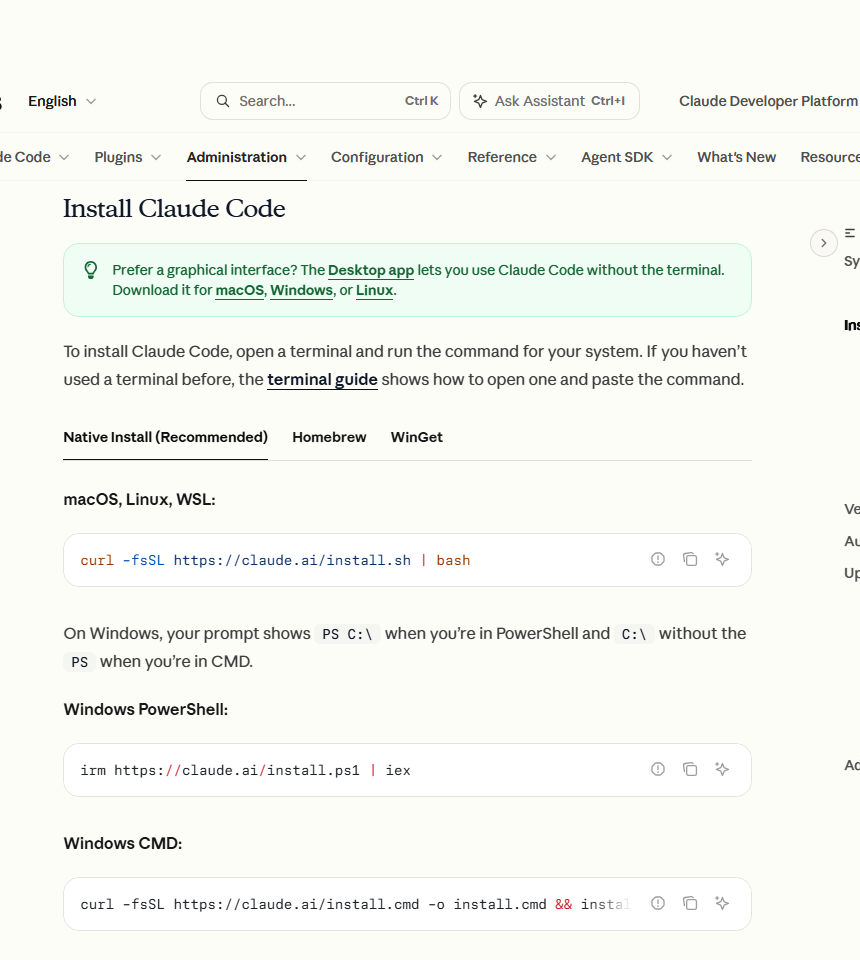
Use the row that matches the terminal in front of you. The native installer is the simplest choice for most people because native installations update automatically in the background.
System or method | Install command | Automatic updates |
|---|---|---|
macOS, Linux or WSL |
| Yes |
Windows PowerShell |
| Yes |
Windows CMD |
| Yes |
Homebrew on macOS |
| No |
WinGet on Windows |
| No |
Homebrew and WinGet installations do not update automatically. If you choose one of them, use its own upgrade command later rather than placing a second native installation on top.
Step 1: open the right terminal
Open the terminal included with your operating system. If you use WSL on Windows, open the WSL distribution and install and launch claude inside that terminal, not in PowerShell or CMD.
On native Windows, decide whether the prompt is PowerShell or CMD before you paste anything. A PowerShell prompt normally begins with PS C:\`. A CMD prompt shows `C:\` without `PS. The scripts are different, so a command copied into the wrong shell will fail before Claude Code is installed.
You do not need to run the Windows installer as Administrator. Git for Windows is recommended because it lets Claude Code use the Bash tool. Without it, Claude Code uses PowerShell as its shell tool.
Step 2: run the install command
For macOS, Linux or WSL, paste:
unknown nodeFor Windows PowerShell, paste:
unknown nodeFor Windows CMD, paste:
unknown nodeWait even if the terminal looks idle. Anthropic says the install command shows no progress while it downloads Claude Code. Do not paste the command a second time just because no bar or percentage appears.
Step 3: confirm the installation
When the installer finishes, close the terminal and open a new one. This matters because a fresh terminal reloads the environment and can see the newly added command. Then run:
unknown nodeA working installation prints a version such as 2.1.211 (Claude Code). Your number may be different. The important result is that the shell finds claude and prints a version instead of an error.
Next, run the read-only diagnostic:
unknown nodeclaude doctor prints installation and settings diagnostics without starting a session. This is the fastest way to distinguish a broken installation from an account or project problem.
Step 4: sign in and start Claude Code
Move into the folder where you want to work, then run:
unknown nodeClaude Code opens a browser for authentication. Choose a Claude subscription account or Claude Console, then complete the browser prompts. The supported subscription accounts are Pro, Max, Team and Enterprise; the free Claude plan does not include access.
If the browser does not open, press c in the terminal to copy the OAuth URL, then paste it into a browser. If sign-in fails, run /logout, close Claude Code, restart it with claude, and complete authentication again.
Start with a small request that does not change files, such as asking it to explain the project structure. That confirms the session can read the folder before you ask it to edit anything.
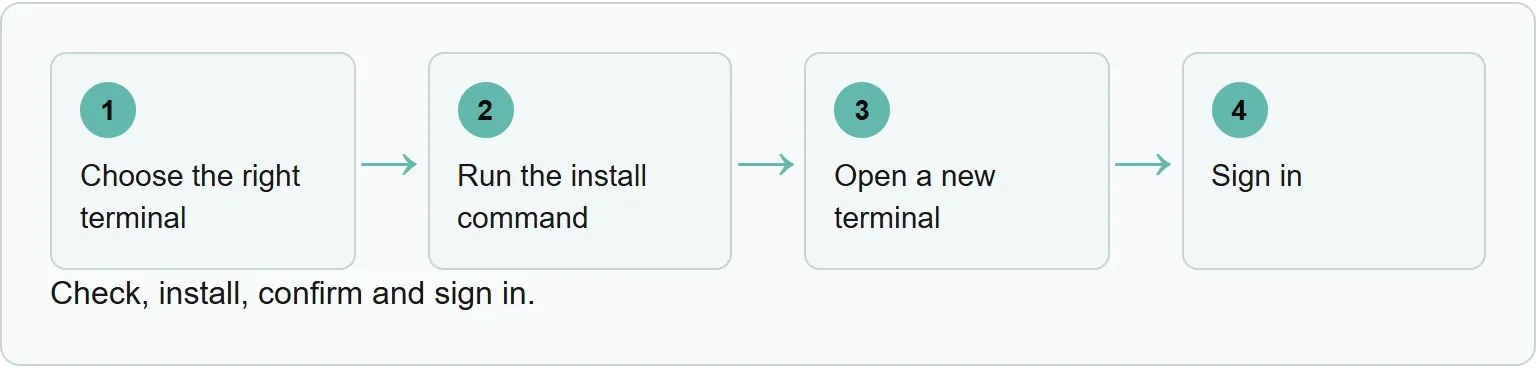
The installation flow at a glance
These four steps show the order from setup to an authenticated session.
If Claude Code says command not found
If the shell says claude is not found or is not recognized, the install directory is not on your PATH yet. First, make sure you opened a new terminal after the installer finished. A terminal that was already open may still have the old environment.
The native installer puts the executable at ~/.local/bin/claude on macOS, Linux and WSL. For Zsh, add that folder to PATH and reload the shell:
For Bash on Linux or WSL, use:
unknown nodeOn Windows, the native executable is %USERPROFILE%\.local\bin\claude.exe. In PowerShell, add its folder to your User PATH:
In Windows CMD, open System Settings, choose Environment Variables, and add %USERPROFILE%\.local\bin to the User PATH. Open a new terminal and run claude --version again. Success is a version number instead of a command error.
Source: Anthropic's installation troubleshooting guide, viewed 30 October 2026.
If the Windows command fails immediately
Look at the prompt again. The most common Windows mistake is pasting the PowerShell installer into CMD, or the CMD installer into PowerShell.
- If the line begins with
PS, use the PowerShell command withirm. - If the line begins only with a drive letter such as
C:\`, use the CMD command with `curl. - If you are inside WSL, use the macOS, Linux and WSL command with
bash.
On native Windows, Git for Windows is recommended for Bash support, but it is not required for the installer itself. Claude Code falls back to PowerShell when Git for Windows is absent.
Should you use Homebrew or WinGet instead?
Use a package manager when your team already manages developer tools that way. The commands are familiar and make inventory easier. The trade-off is manual updates.
For Homebrew:
unknown nodeFor WinGet:
unknown nodeNative installations update automatically in the background. Homebrew and WinGet installations do not, so plan to run the matching package-manager upgrade command periodically. The update guide lists the matching commands.
Where Xtrusio fits after setup
After building or improving a page, the next question is whether AI engines can find it and describe the company correctly. The visibility check shows mentions and competing brands across supported AI engines.
For an access-cost comparison, read the Claude Code pricing guide. For the visibility side, run a free AI visibility check.
Official sources
The commands, requirements and troubleshooting steps in this guide come from Anthropic's documentation.
Frequently asked questions
What is the fastest way to install Claude Code?
Use Anthropic's native installer for your operating system. It is one command, and native installations update automatically in the background.
How do I know Claude Code installed correctly?
Open a new terminal and run claude --version. A working installation prints a version number. Run claude doctor for read-only installation and settings diagnostics.
Can I install Claude Code on Windows?
Yes. Windows 10 version 1809 or later and Windows Server 2019 or later are supported. Use the PowerShell command in PowerShell, the CMD command in CMD, or the Linux command inside WSL.
Do I need Administrator access on Windows?
No. Anthropic says the Windows installer does not need to run as Administrator.
Can I use Claude Code with a free Claude account?
No. Claude Code requires a Pro, Max, Team, Enterprise or Console account. The free Claude plan does not include it.
Does Claude Code update automatically?
Native installations update automatically in the background. Homebrew and WinGet installations do not update automatically.
Topics
- install claude code

Xtrusio
AI visibility research
Xtrusio is the Perception Engine for B2B brands.
Free check
See how AI engines answer about you
Get your free AI visibility check
Keep reading
 Technical SEO · Oct 30, 2026 · 7 min read
Claude Code Extension for VS Code: Install, Sign In and Start
Install the official Claude Code extension for VS Code, sign in, send a file-aware prompt, review changes and fix common setup problems. Technical SEO · Oct 30, 2026 · 9 min read
How to Rank in Google AI Mode: A Practical Guide
Check Search eligibility, inspect a real AI Mode answer and sources, improve one page, and repeat the question without promising a citation. Technical SEO · Oct 30, 2026 · 9 min read