Claude Code Plan Mode: How to Review and Execute Safely
Short answer
That separation matters when a change crosses several files, touches authentication or data, or starts in unfamiliar code. It gives you a decision point before implementation. It does not prove the plan is correct, and it does not replace a diff review or tests after execution.
Before you start
You need Claude Code installed, a repository open and a task with a known failure. By the end, you should have an approved plan, a controlled edit and a checked diff.
When Plan mode is the right choice
Use Plan mode when the cost of a wrong first move is higher than the cost of a short investigation. Good candidates include a multi-file refactor, a database change, an unfamiliar subsystem, a security-sensitive edit or a bug whose cause is still uncertain.
A small, obvious change may not need it. Renaming one label in a known component is usually easier to review as a direct edit. The point is to add a useful checkpoint, not ceremony.
Situation | Start in | Reason |
|---|---|---|
Unfamiliar code or unclear root cause | Plan | Explore dependencies and assumptions before editing |
Known fix, but every edit needs inspection | Manual | Review each proposed change individually |
Trusted direction with several routine file edits | Accept Edits | Let file edits proceed, then review the diff |
Well-bounded task in a trusted environment | Auto | Reduce routine prompts, while still reviewing the outcome |
The Plan mode workflow at a glance
The workflow below separates the session into distinct stages. Each stage has a different question: what do we want, what did Claude find, is the approach sound, what may it change and did the implementation match the decision?
Define the taskLet Claude investigateChallenge the planControl the editsCheck the result
Step 1: frame the task before planning
A planning prompt should state the goal, the boundary and the evidence you expect. Do not prescribe an implementation you have not yet validated. Ask Claude to identify the relevant files and explain its assumptions.
Copy this planning prompt
Plan, but do not edit, how to prevent raw style tag text from appearing in a rendered blog article. Identify the body-processing path, the smallest regression test, any existing guard to mirror and the focused command that would check the change. Keep the implementation out of scope until I approve the plan.
This example comes from a real fix to our own blog publishing pipeline, where article markup had to render as content rather than appear as raw text. You can see the wider context on the Xtrusio blog. It gives the planning exercise a specific failure and a visible result to check.
This prompt gives Claude a concrete failure to investigate. It also asks for a narrow test and a focused command. A vague request such as “improve blog rendering” makes it harder to tell whether the plan solved the intended problem.
Step 2: enter Plan mode and confirm it is active
In the Claude Code CLI, press Shift+Tab until the status bar shows Plan mode, or prefix one prompt with /plan. Anthropic's documentation says Shift+Tab cycles the permission modes and that /plan can apply Plan mode to a single prompt. Pressing Shift+Tab again leaves Plan mode without approving the proposal.
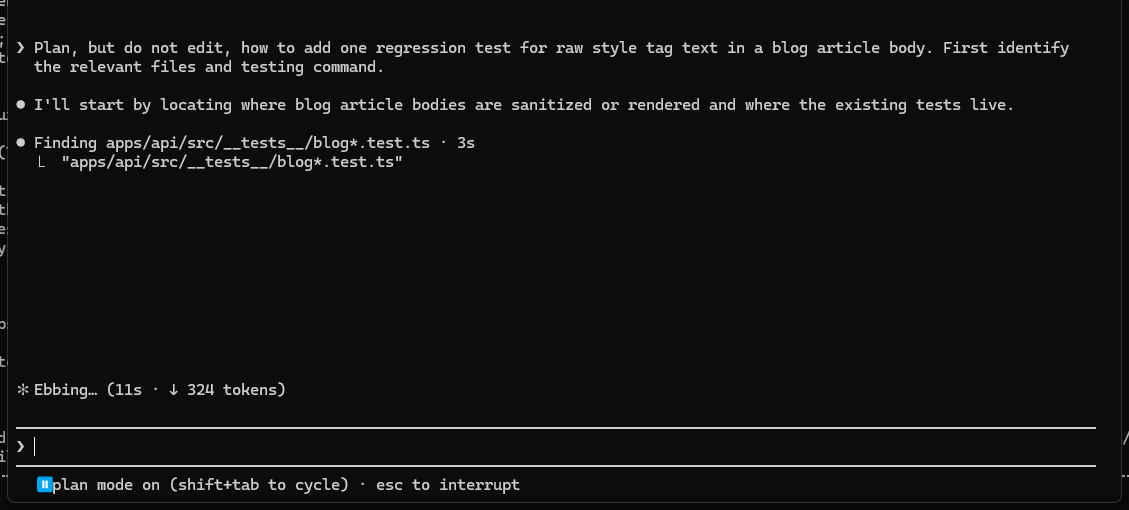
The mode indicator is an important check. A sentence that says “do not edit” is an instruction inside a prompt. Plan mode is the session control designed for investigation before source changes. Anthropic describes it as a mode in which Claude researches and proposes changes without editing source files.
Step 3: review the proposed plan
Do not treat the first plan as an approval request you must accept. Read it as a technical proposal. The most useful review questions are concrete:
- Did Claude identify the actual code path, not only a file whose name looks relevant?
- Does the plan name the smallest change that would fix the failure?
- Is there a regression test that fails before the change and passes after it?
- Are important side effects, migrations or compatibility risks missing?
- Does the plan include work outside the stated scope?
- What command will check the change, and is that command focused enough to diagnose a failure?
Pause here. Read the proposal. Ask what could go wrong. Approve only when the scope is clear.
If the proposal is incomplete, choose the option to keep planning and tell Claude exactly what must change. You can also press Ctrl+G to open the proposed plan in the default text editor and edit it directly before execution.
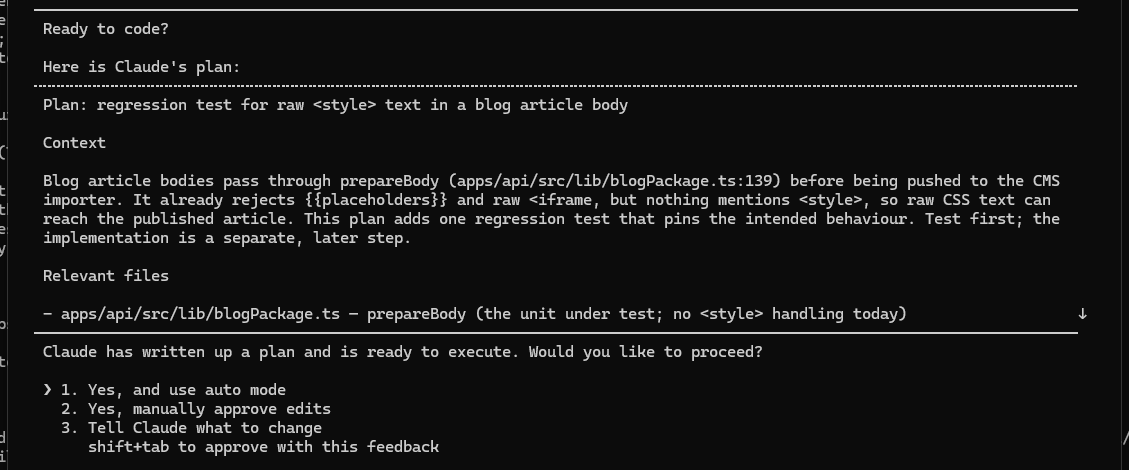
In this example, the plan identified the body-processing function and the existing test file, then proposed one regression test before any implementation. That is useful evidence for a review. It is not yet evidence that the new guard works.
Step 4: choose how Claude should execute
When the plan is ready, Claude Code offers approval choices. Manual approval lets you inspect each edit individually. Accept Edits permits file changes in the working directory without asking about every edit, which is useful when you plan to review the diff afterward. Auto mode reduces routine prompts, but Anthropic warns that it does not guarantee safety and should not replace review for sensitive operations.
Choose the least permissive mode that keeps the work practical. For an authentication change or an unfamiliar codebase, manual approval is a sensible default. For a repetitive, well-understood refactor with a strong test, Accept Edits may remove unnecessary prompts. Use Auto mode only when the task boundary and environment are trusted.
Mode | What is approved | When to use it | What still needs review |
|---|---|---|---|
Manual | Each proposed edit is reviewed individually | Sensitive changes or unfamiliar code | Every edit, then the final diff and tests |
Accept Edits | File changes in the working directory can proceed without a prompt for each edit | A trusted direction with several routine edits | The completed diff, tests and rendered result |
Auto | Eligible actions can proceed with fewer permission prompts | A bounded task in a trusted environment | Sensitive operations, the full diff, tests and outcome |
Source: Anthropic's permission mode documentation.
Approval exits Plan mode and moves the session into the selected execution mode. If the implementation reveals a new dependency or changes the scope, stop and return to Plan mode instead of stretching the old proposal.
Step 5: check the implementation
A plan is a prediction about the work. Direct inspection shows what actually changed. After execution:
- Read the diff and compare each changed file with the accepted plan.
- Run the focused regression test named in the plan.
- Run the repository's type check if the change can affect shared types.
- Check that no unrelated file changed.
- For a UI or content fix, inspect the rendered result at the relevant screen sizes.
If the test passes but the rendered problem remains, the plan found the wrong boundary. Return to investigation. Do not add broader changes merely to make the existing plan look complete.
A practical example: control a rendering fix
Suppose a published article displays CSS as visible text. A weak plan might say “sanitize the HTML.” A better plan identifies where article bodies are prepared, finds the closest existing rejection test, adds one failing case for raw style tags and names the focused test command. It should also distinguish the article body from the cover page or another surface that is not affected.
Before approval, ask Claude to explain why the selected function is the correct boundary and whether the guard should reject, remove or escape the tag. Those choices have different consequences. A rejection protects the pipeline but requires the source content to be corrected. Removal may hide an authoring error. Escaping deliberately displays the tag as text, which is the opposite of the intended result here.
Approve only after the desired behavior is explicit. Then review the test first, the implementation second and the rendered output last.
If a step does not work
Shift+Tab does not reach Plan mode: watch the status bar as you cycle through Manual, Accept Edits and Plan. If the shortcut still fails, start a new session directly in Plan mode with claude --permission-mode plan.
/plan is not recognised: check your installed version with claude --version, run claude update, then retry. The current documentation lists /plan as a direct entry method.
Auto is missing from the approval choices: Auto appears only when it is available to the session. Anthropic says availability can depend on the Claude Code version, model, organization settings or a temporary service-side restriction. Choose Manual or Accept Edits rather than trying to bypass that restriction.
Claude asks to edit while you are still planning: confirm that the status bar says Plan mode on. If it does not, re-enter Plan mode with Shift+Tab, /plan or a new session started with claude --permission-mode plan.
Common Plan mode mistakes
Using a vague prompt
If the goal and boundary are unclear, the plan may be detailed but still solve the wrong problem. Name the failure, expected behavior and test evidence.
Approving the plan without reading it
Plan mode creates a checkpoint only if you use it. Check the files, sequence, tests and out-of-scope work before approval.
Switching to a permissive mode too early
Auto mode can reduce prompts, but fewer prompts are not the same as a safer change. Match the permission mode to the sensitivity and clarity of the task.
Treating the plan as proof
A coherent proposal can still rely on a wrong assumption. The diff, test result and rendered behavior are the evidence that matters after execution.
Official sources
These Anthropic pages describe the modes, shortcuts and approval controls used in this guide.
Frequently asked questions
How do I turn on Claude Code Plan mode?
Press Shift+Tab until the status bar shows Plan mode, or prefix one prompt with /plan.
Can Claude Code edit files in Plan mode?
Anthropic says Plan mode researches and proposes changes without editing source files. Edits begin after you approve the plan into an execution mode.
Can I edit Claude's plan before execution?
Yes. Choose the option to keep planning and give feedback, or press Ctrl+G to open the proposed plan in the default text editor.
Which mode should I choose after approval?
Use Manual when you want to review each edit. Use Accept Edits when the direction is trusted and you will inspect the diff. Use Auto only for a bounded task in a trusted environment, and still review the result.
Does Plan mode replace tests?
No. Plan mode helps you review an approach before execution. Tests and direct inspection check the implementation afterward.
Topics
- claude code plan mode
- claude code planning mode

Xtrusio
AI visibility research
Xtrusio is the Perception Engine for B2B brands.
Free check
See how AI engines answer about you
Get your free AI visibility check
Keep reading
 Technical SEO · Oct 29, 2026 · 8 min read
Claude Code Hooks: How to Set Them Up, With Working Examples
Set up Claude Code hooks with working notification, formatter and protected-file examples, then verify them with /hooks and fix common failures. Technical SEO · Oct 29, 2026 · 5 min read
How to Update Claude Code: Commands for Every Install Method
Update Claude Code with the right command for native, Homebrew, WinGet, npm, apt, dnf or apk installs, then verify the version and channel. Technical SEO · Oct 29, 2026 · 7 min read