Claude Code Hooks: How to Set Them Up, With Working Examples

Short answer
Before you start
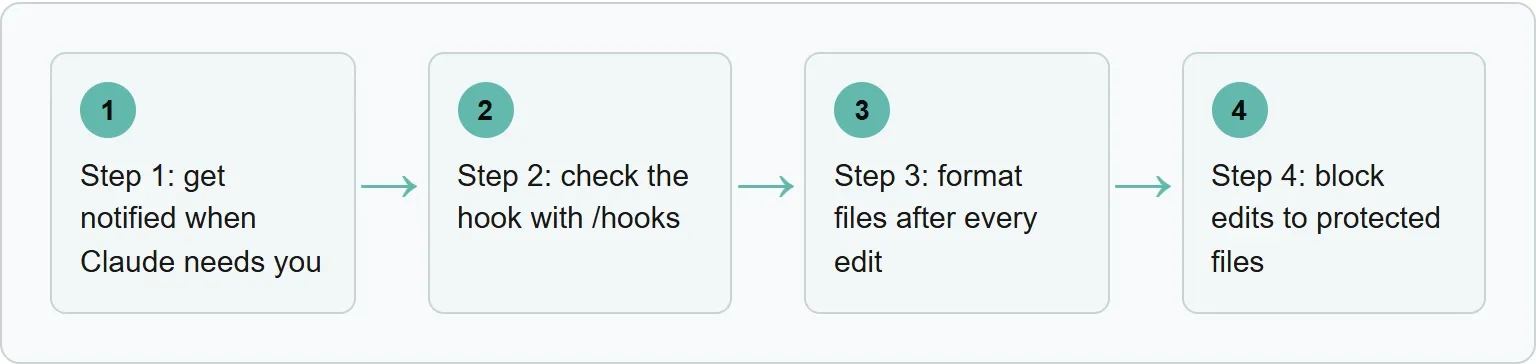
You need Claude Code, a terminal, and jq for the formatter and protected-file examples. The formatter example also assumes Prettier is available in the project. At the end, you will have three working hooks and a repeatable way to inspect them.
Step 1: get notified when Claude needs you
Anthropic's first example adds a Notification hook to ~/.claude/settings.json. On macOS, it uses osascript to display a system notification.
```
{
"hooks": {
"Notification": [
{
"matcher": "",
"hooks": [
{
"type": "command",
"command": "osascript -e 'display notification \"Claude Code needs your attention\" with title \"Claude Code\"'"
}
]
}
]
}
}
```
On Linux, replace the command value with:
```
notify-send 'Claude Code' 'Claude Code needs your attention'
```
This needs a desktop notification service. It will not display on most headless servers, containers or plain SSH sessions.
On Windows, use Anthropic's PowerShell command:
```
powershell.exe -Command "[System.Reflection.Assembly]::LoadWithPartialName('System.Windows.Forms'); [System.Windows.Forms.MessageBox]::Show('Claude Code needs your attention', 'Claude Code')"
```
That command opens a message box, which can appear behind the terminal window.
If the file does not exist, create it. If it already contains settings, add the hooks key without deleting the existing keys. Save the file, start a new Claude Code session, and trigger an action that needs your attention.
For a direct test, ask Claude to run a command that opens a permission prompt and leave the prompt unanswered for a moment. The Notification event fires when Claude Code is waiting for input or permission. On macOS or Linux, you should see a desktop notification. On Windows, you should see the message box.
Do not replace the whole file if it already contains permissions, environment values or other settings. Edit the existing JSON object and keep one top-level hooks key. When you add more events later, place them beside Notification inside that object.
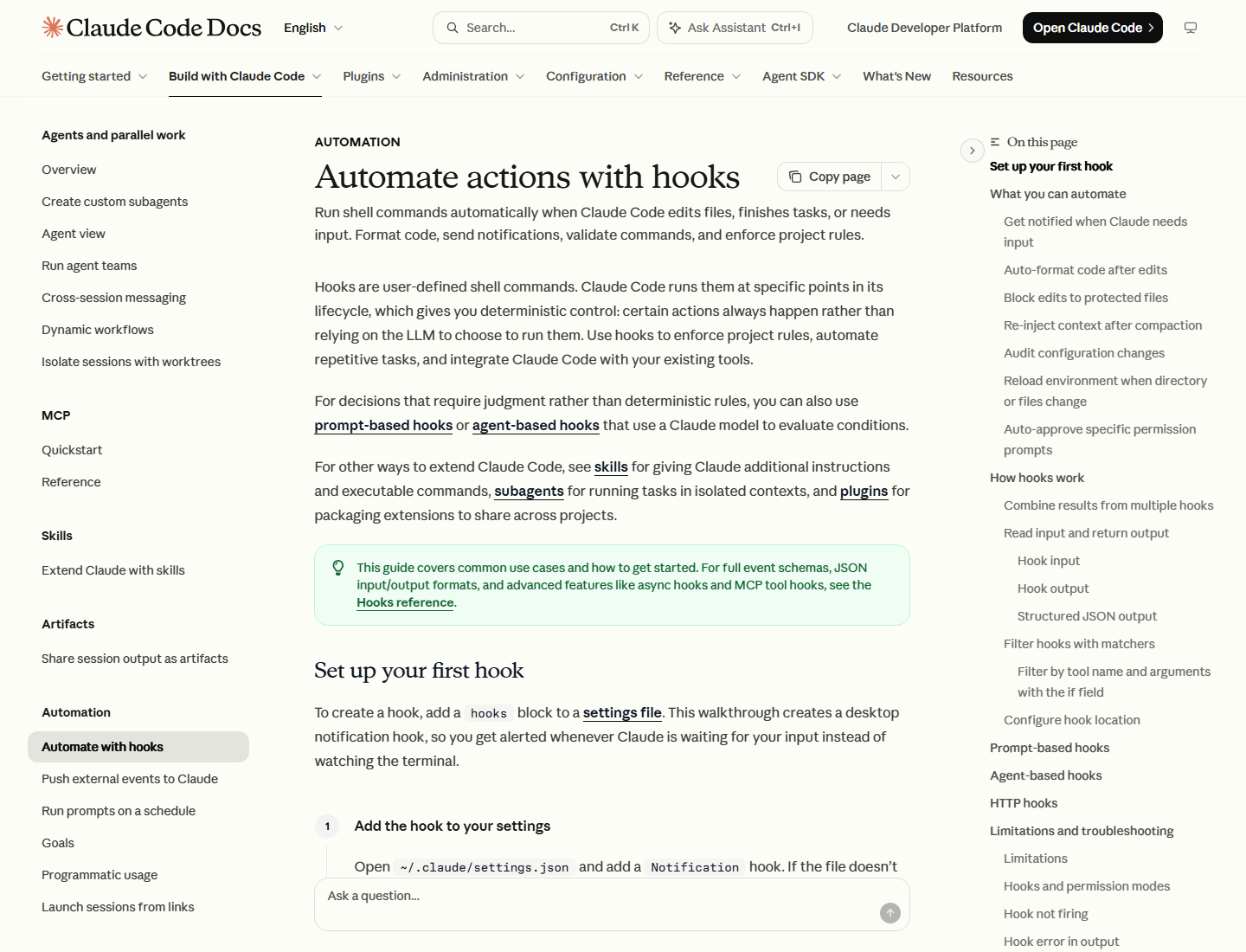
Step 2: check the hook with /hooks
Type /hooks at the Claude Code prompt. Anthropic says this opens the hooks browser, where you can inspect the configured events and commands. Confirm that Notification appears and that the command matches the JSON you saved.
If it does not appear, confirm that you edited the intended settings file and that the JSON is valid. A missing comma, extra brace or edit in the wrong project file is enough to hide the hook you expected.
Use the browser as a configuration check, not as proof that the external command works. After the hook appears, trigger the event and watch for the operating-system notification. That separates a settings problem from a shell-command problem.
Keep repository rules local, then check the published result
Your formatter and protected-file hooks keep local work consistent before a page is published. After publication, a different question matters: do AI answer engines cite the page and describe the product accurately? Xtrusio records each tracked answer, its citations and the searches the engine ran. The evidence view is shown below.
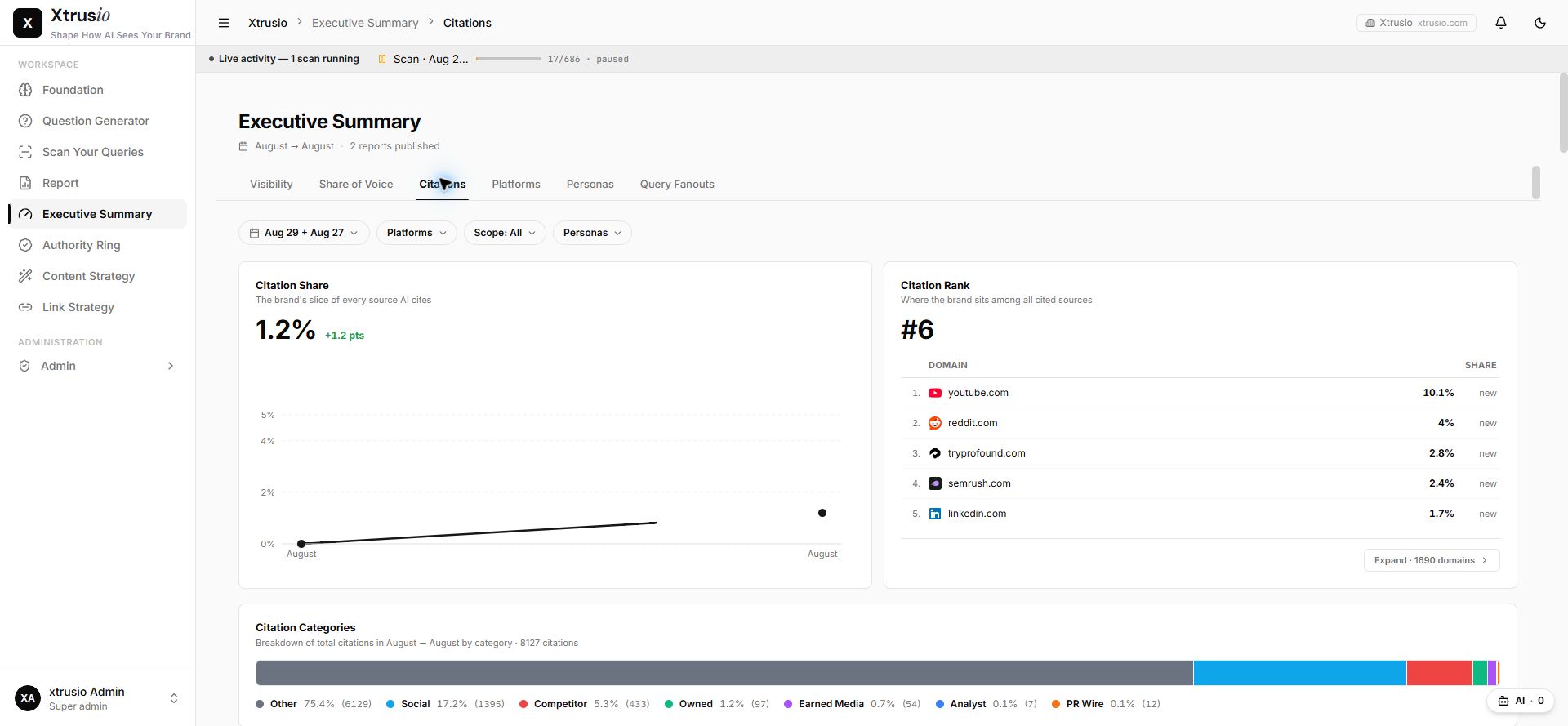
The hook protects the repository rule. Xtrusio preserves the answer and citation evidence after the page is live. They are separate checks for separate stages of the same publishing workflow.
Get your free AI visibility check.
Step 3: format files after every edit
A PostToolUse hook runs after a matching tool finishes. Anthropic's example matches Edit|Write, reads the edited file path from the hook input, and sends it to Prettier.
```
{
"hooks": {
"PostToolUse": [
{
"matcher": "Edit|Write",
"hooks": [
{
"type": "command",
"command": "jq -r '.tool_input.file_path' | xargs npx prettier --write"
}
]
}
]
}
}
```
Put this in the settings file whose scope matches the rule. A shared repository rule belongs in .claude/settings.json. A personal experiment can go in .claude/settings.local.json.
Before relying on it, run the Prettier command manually in the project. The hook cannot make a missing formatter or invalid Prettier configuration work.
Make a small change to a file type your project already formats, then inspect the result. If the file changes as expected, check the project diff before accepting it. A formatter hook is most useful when the repository already has a reviewed formatting configuration and the same command runs in local development or continuous integration.
Step 4: block edits to protected files
For a blocking rule, keep the decision in a small script and call that script from a PreToolUse hook. Create .claude/hooks/protect-files.sh with Anthropic's example:
```
#!/bin/bash
INPUT=$(cat)
FILE_PATH=$(echo "$INPUT" | jq -r '.tool_input.file_path // empty')
FILE_PATH="${FILE_PATH//\\//}"
PROTECTED_PATTERNS=(".env" "package-lock.json" ".git/")
for pattern in "${PROTECTED_PATTERNS[@]}"; do
if [[ "$FILE_PATH" == "$pattern" ]]; then
echo "Blocked: $FILE_PATH matches protected pattern '$pattern'" >&2
exit 2
fi
done
exit 0
```
On macOS or Linux, make the script executable:
```
chmod +x .claude/hooks/protect-files.sh
```
Then register it in .claude/settings.json so it runs before every Edit or Write call:
```
{
"hooks": {
"PreToolUse": [
{
"matcher": "Edit|Write",
"hooks": [
{
"type": "command",
"command": "\"$CLAUDE_PROJECT_DIR\"/.claude/hooks/protect-files.sh"
}
]
}
]
}
}
```
Test it in a disposable repository. Ask Claude Code to edit a harmless file first, then ask it to edit a protected test file. The first request should continue through the normal permission flow. The protected request should stop with the reason from the script.
Keep the protected patterns narrow and readable. Broad fragments can match more paths than intended. Add one pattern at a time, test an allowed path and a blocked path, and keep the rejection message specific enough that a developer knows which rule fired.
Where Claude Code hooks live
The settings file determines the hook's scope. Use the user file for a personal rule across projects. Use a project file when the rule belongs to one repository.
Settings file | Scope | Shareable |
|---|---|---|
| All projects on your machine | No |
| One project | Yes, it can be committed |
| One project | No, it is gitignored |
Choose the event before you write the command
“Tell me when attention is needed” maps to Notification. “Format a file after Claude changes it” maps to PostToolUse. “Inspect a proposed file edit before it happens” maps to PreToolUse.
Desired behavior | Event | Why it fits |
|---|---|---|
Show an alert | | The command runs when Claude Code emits a notification |
Format a changed file | | The tool has finished, so the file exists in its new state |
Reject a protected edit | | The script can inspect the proposed tool input before the edit |
What exit 0 and exit 2 mean
Exit 0 means the hook has no objection. For PreToolUse, it does not approve the tool call. Claude Code still applies its normal permission flow.
Exit 2 means the hook is blocking the action when that event supports blocking. Write the reason to standard error so Claude Code can show or use it. Some events, including SessionStart, cannot be blocked; exit 2 shows the error but execution continues.
This is why a successful script and an approved tool call are not the same thing. The script answers only its own policy question. Claude Code can still ask for permission after the hook returns 0, while a supported blocking event stops when the script returns 2.
Roll hooks out safely
Treat a shared hook like any other repository automation. Keep the command short, put complicated logic in a versioned script, and make its output explain what happened. Review the settings change and script together so the event, matcher and command cannot drift apart.
Start with a visible, low-risk hook such as a notification. Add a formatter only after its direct command works. Add a blocker last, after you can demonstrate both an allowed case and a denied case. This order gives you a known-good configuration before a hook is allowed to stop work.
Hooks run commands on a developer's machine, so do not commit a command you would not ask a contributor to run directly. Avoid hidden downloads, unexplained network calls and commands that print secrets. A repository hook should be understandable from the settings entry and the script it invokes.
If a hook fails
Work from configuration to command to event behavior. That order prevents you from changing a script when Claude Code never loaded the hook in the first place.
- It does not appear in
/hooks: validate the JSON and confirm that you edited the correct user, project or local settings file. - The command never runs: check the event name and matcher.
PostToolUsehappens after the tool, whilePreToolUsehappens before it. - The protected-file script is ignored: confirm its path and run
chmod +x .claude/hooks/protect-files.shon macOS or Linux. - The command hangs: command hooks time out after 600 seconds by default. Run the command directly to find prompts or long-running work that should not be inside the hook.
- Exit 2 does not stop the event: check whether the event can be blocked.
SessionStartand some other events continue after showing the error.
Official sources
Anthropic's hooks guide supplies the configurations used here. Its hooks reference explains settings scope, event behavior and command timeouts.
Check what AI answer engines can see
Frequently asked questions
What can Claude Code hooks do?
They can run shell commands at lifecycle events. Common uses include formatting files, sending notifications, validating commands and enforcing project rules.
How do I check whether a hook loaded?
Type /hooks in Claude Code. The hooks browser shows the configured events and commands.
Which settings file should I use?
Use ~/.claude/settings.json for all projects,.claude/settings.json for a shareable project rule, or.claude/settings.local.json for an unshared project rule.
Does exit 0 approve a tool call?
No. In a PreToolUse hook, exit 0 means the hook does not object. The tool call still follows the normal permission flow.
Can every hook event block an action?
No. Some events, including SessionStart, cannot be blocked. Exit 2 shows the error there, but execution continues.
Topics
- claude code hooks
- claude hooks examples

Xtrusio
AI visibility research
Xtrusio is the Perception Engine for B2B brands.
Free check
See how AI engines answer about you
Get your free AI visibility check
Keep reading
 Technical SEO · Oct 29, 2026 · 5 min read
How to Update Claude Code: Commands for Every Install Method
Update Claude Code with the right command for native, Homebrew, WinGet, npm, apt, dnf or apk installs, then verify the version and channel. Technical SEO · Oct 29, 2026 · 7 min read
OAI-SearchBot: What It Does and How to Check ChatGPT Search Can Reach Your Site
Learn what OAI-SearchBot does and check robots.txt, HTTP status, firewall rules and OpenAI's published IP ranges for ChatGPT search access. Technical SEO · Oct 26, 2026 · 6 min read