Claude Code Extension for VS Code: Install, Sign In and Start
Short answer
Install Claude Code for VS Code from the official Anthropic Marketplace listing, open the Claude Code panel, sign in with an eligible Claude or Console account, send a prompt, and review each proposed change before accepting it.
The first trap is choosing the wrong extension. A Marketplace search returns several similar names. Confirm the publisher and identifier before you install anything. The public listing for the official extension names Anthropic as publisher and uses anthropic.claude-code as its unique identifier.
What you will learn
This guide follows the public install route and names the visible result after each step.
- How to identify and install the official Anthropic extension.
- What should appear when you open the panel and sign in.
- How to send a file-aware first prompt and review its proposed edit.
- How to separate an extension problem from a standalone CLI problem.
Confirm you found the official extension
Open the Claude Code for VS Code Marketplace listing. Check three fields before clicking Install:
- The product name is Claude Code for VS Code.
- The publisher is Anthropic.
- The unique identifier is
anthropic.claude-code.
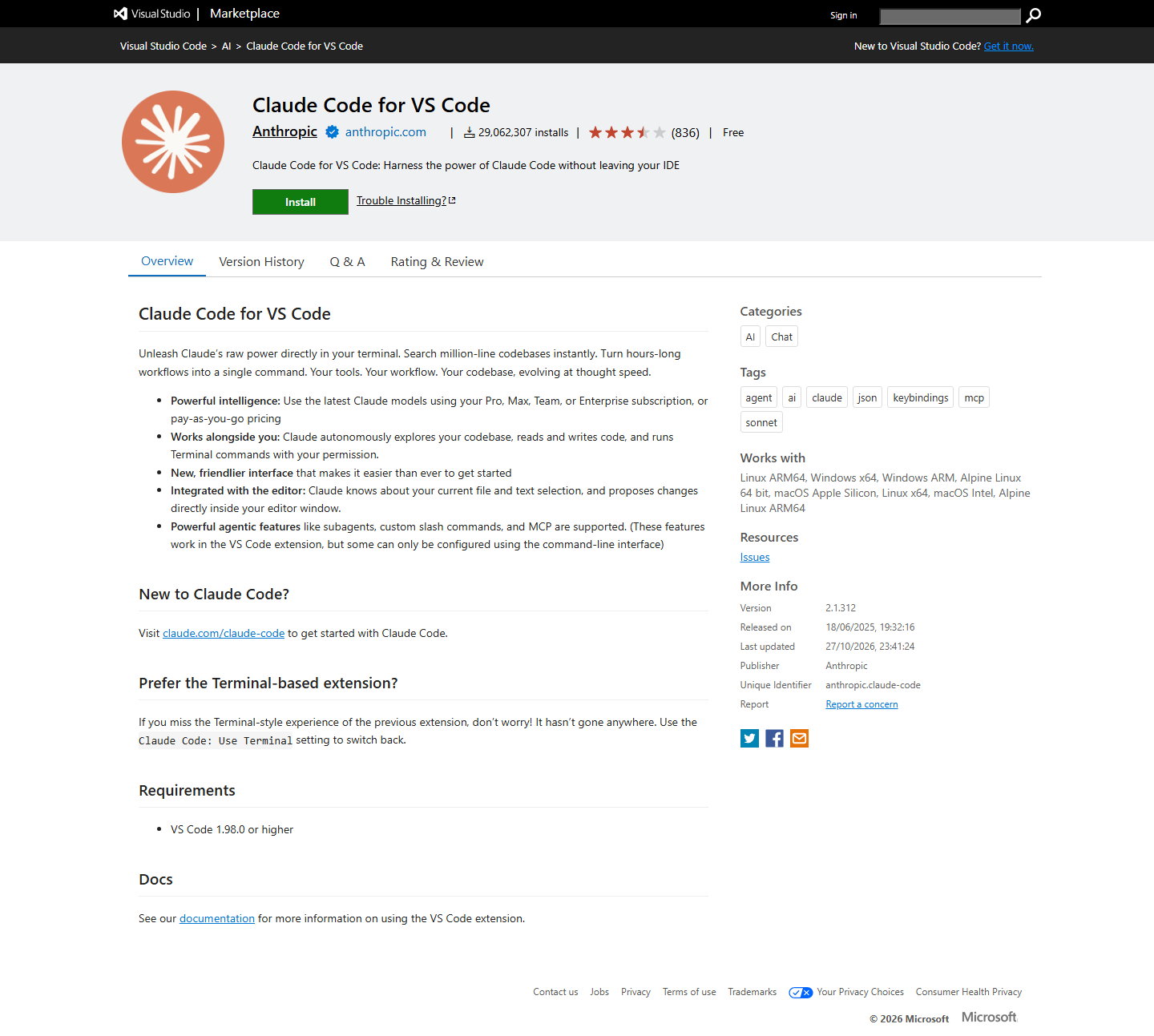
The listing is useful because it separates the official extension from third-party products that use Claude in their names. The public listing showed VS Code 1.98.0 or higher on that date. Anthropic's documentation still listed VS Code 1.94.0 or later. Use the higher listing requirement if you want the safer current baseline.
Before you install
You need VS Code and an account that Claude Code can use. Anthropic says a paid Claude subscription (Pro, Max, Team or Enterprise) or a Claude Console account works, and that this sign-in route does not require an API key. Third-party provider setups have separate instructions.
Decide whether you want the graphical panel, the terminal command or both. The extension includes its own CLI copy for the chat panel. It does not make the standalone claude command available in VS Code's integrated terminal. Install the standalone CLI separately only if you need that terminal route.
The setup path at a glance
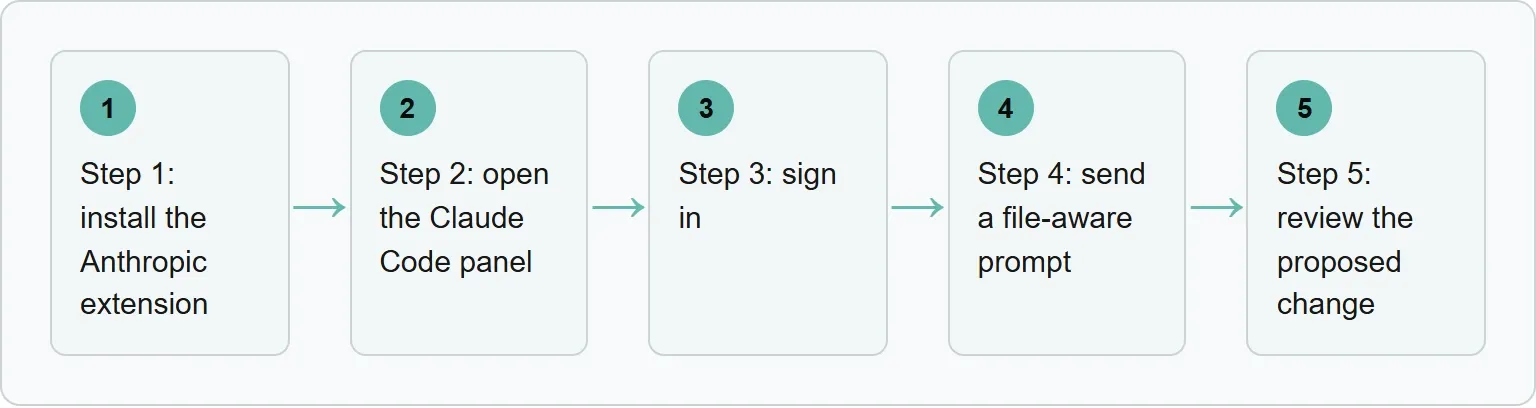
Each step has a visible outcome. Stop when that outcome is missing. That makes troubleshooting faster than repeating the whole setup.
Step 1: install the Anthropic extension
On Windows or Linux, press Ctrl+Shift+X to open the Extensions view. On a Mac, press Cmd+Shift+X. Search for “Claude Code”, open the Anthropic listing and click Install.
After installation, the Extensions view should show the installed version. Anthropic says the extension version is also the Claude Code version bundled with it. This matters when a feature needs a particular Claude Code release.
If the extension does not appear after installation, restart VS Code. You can also open the Command Palette and run Developer: Reload Window. Do not install another similarly named product merely because the first icon is not visible yet.
Step 2: open the Claude Code panel
Open a file, then look for the Spark icon in the Editor Toolbar at the top right. The toolbar icon only appears when a file is open. Clicking it opens Claude Code.
You have two other reliable entry points. The Activity Bar has a Spark icon for the sessions list. The Command Palette also offers Claude Code actions, including opening a new tab. The status bar can open Claude Code even when no file is open.
What you should see: a Claude Code panel or tab with a sign-in screen if this is the first use. If nothing opens, confirm the extension is enabled and reload the window before changing any account settings.
Step 3: sign in
The first panel open shows a sign-in screen. Click Sign in and finish authorization in your browser. Return to VS Code when the browser flow completes.
After sign-in, Anthropic says a Learn Claude Code checklist appears. You can work through it or dismiss it. If the panel says “Not logged in · Please run /login”, it should reopen the sign-in screen. If it does not, use Developer: Reload Window.
What you should see: the prompt box and the onboarding checklist, rather than another browser authorization request.
Step 4: send a file-aware prompt
Open a file that you can safely inspect. Select a small function or block, then ask a read-only question such as:
```
Explain what this selected function returns. Name any error path, but do not edit the file.
```
Claude automatically sees selected text. On Windows or Linux, Alt+K adds an explicit file reference to the prompt. On a Mac, use Option+K. The reference can include a file and line range, which makes the scope easier to check before you send.
What you should see: the selected code or an explicit file reference attached to the prompt, followed by an answer about that exact selection.
Step 5: review the proposed change
Use Manual mode for your first edit request. In Manual mode, Claude shows a side-by-side comparison of the original and proposed content and asks for permission before applying the edit.
Read the diff rather than accepting from the summary alone. Check the intended file, the changed lines and any command Claude wants to run. You can accept, reject or tell Claude what to change. If you edit the proposed content inside the diff, Claude is told that you modified it.
What you should see: a reviewable diff and a permission choice before the file changes. If edits happen without that pause, check the permission mode shown at the bottom of the prompt box.
Where Xtrusio uses the same evidence habit
Reviewing a diff keeps the evidence attached to the decision. Xtrusio monitors agreed buyer questions and records the answers, brand mentions and citations before content planning.
Extension or CLI?
The extension and the standalone CLI overlap, but they are not the same install. The extension provides a native panel with inline diffs, file references, conversation history and editor controls. The standalone CLI runs from a terminal.
Choose the route by where you want to work
Need | Use | Check |
|---|---|---|
Graphical chat inside VS Code | Claude Code extension | The Spark icon opens the panel |
Inline file references and native diffs | Claude Code extension | The prompt shows the selected file or lines |
The | Standalone CLI | The command starts from the integrated terminal |
If the panel works but the terminal says the command is not found, that does not prove the extension failed. It usually means you have not installed the separate terminal CLI or VS Code cannot see it on the current path.
When the setup goes wrong
Match the symptom to one next check instead of repeating the whole installation.
Start with the missing visible result
What you see | Likely issue | Next check |
|---|---|---|
No toolbar Spark icon | No file is open, or the window needs a reload | Open a file, then run Developer: Reload Window |
Panel opens but asks to sign in again | The browser authorization did not return cleanly | Reload the window and start Sign in from the panel |
Panel works, terminal command does not | The standalone CLI is not installed or visible | Treat the terminal CLI as a separate install |
Claude proposes edits without the review you expected | The permission mode is not Manual | Change the mode at the bottom of the prompt box |
Keep the diagnosis narrow. Confirm the extension identity, then the panel, then the account, then the prompt context, and finally the permission mode. Changing all five at once makes the cause harder to find.
Frequently asked questions
Is Claude Code for VS Code the official extension?
Yes, when the Marketplace listing names Anthropic as publisher and anthropic.claude-code as the unique identifier.
Do I need an API key?
Not when you sign in with an eligible paid Claude subscription or Claude Console account. Third-party provider setups follow different instructions.
Why is the Spark icon missing?
The Editor Toolbar icon requires an open file. Open a file first. If it still does not appear, reload the VS Code window and confirm the extension is enabled.
Does the extension install the terminal command?
No. The extension bundles a CLI for its chat panel, but Anthropic says the standalone CLI is still required to run claude in the integrated terminal.
Which permission mode should I use first?
Manual mode is the clearest first-run choice because it shows a side-by-side diff and asks before applying an edit.
Topics
- claude code extension for vs code

Xtrusio
AI visibility research
Xtrusio is the Perception Engine for B2B brands.
Free check
See how AI engines answer about you
Get your free AI visibility check
Keep reading
 Technical SEO · Oct 30, 2026 · 9 min read
How to Rank in Google AI Mode: A Practical Guide
Check Search eligibility, inspect a real AI Mode answer and sources, improve one page, and repeat the question without promising a citation. Technical SEO · Oct 30, 2026 · 7 min read
How to Install Claude Code on Mac, Windows and Linux
Install Claude Code with the official Mac, Windows, Linux or WSL command, confirm the version, fix PATH errors and sign in. Technical SEO · Oct 30, 2026 · 9 min read