ChatGPT Agent Mode Is Retired: How to Use ChatGPT Work
Short answer
ChatGPT agent mode is gone. OpenAI's Help Center now points people to ChatGPT Work for longer, multi-step tasks and to the cloud browser for supported browser workflows. Work is available on every plan: Free and Go get limited desktop access, while Plus, Pro, Business, Enterprise and Edu can use it on desktop, web and mobile.

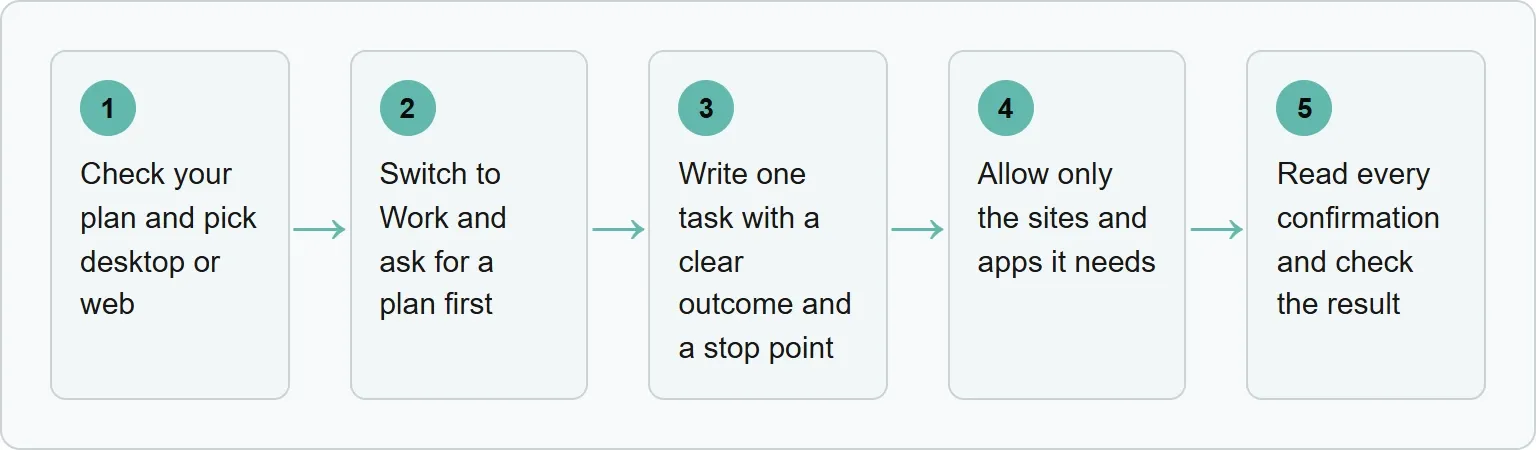
To run a task safely, switch to Work, give it one clear outcome, name the sources it may use and state when it must stop for your review. Allow only the apps and sites it needs. Read every confirmation before you approve it.
Before you start
You need a ChatGPT plan with Work access, the desktop app if your plan requires it, and the page URLs shown in the prompt. You get a comparison table that you can review before anything is sent. This guide shows you where to open Work, how to plan the task, how to limit permissions and when to stop for review. Codex here means the separate Codex workspace. Work and Codex share one allowance, so a long Work session can affect the usage left for Codex.
What happened to ChatGPT agent mode?
Agent mode launched in July 2025 and combined browsing with Deep Research. OpenAI retired it in early August 2026. Old instructions that tell you to open the tools menu or type /agent no longer match the current product.
OpenAI Help Center, ChatGPT agent. The notice appeared in early August 2026.
ChatGPT agent is no longer available. Use ChatGPT Work for longer, multi-step tasks and finished deliverables. For supported browser workflows, see Using cloud browser in ChatGPT.
The old agent limits of 40 messages on Plus and 400 on Pro are not Work limits. OpenAI describes Work through a shared allowance with Codex, not through those old message totals. It has not said whether the retired mode will return.
Which plans include ChatGPT Work?
Every ChatGPT plan includes Work, but access and session length differ. Free and Go are desktop-only and limited. Paid individual plans add web and mobile access. Business, Enterprise and Edu also include Work on desktop, web and mobile.
ChatGPT Work by plan, checked 2 November 2026
Plan | Price | Where Work runs | Access |
|---|---|---|---|
Free | No charge | Desktop app | Limited |
Go | $8 a month | Desktop app | Limited |
Plus | $20 a month | Desktop, web and mobile | Expanded |
Pro | $100, $200 or $500 a month | Desktop, web and mobile | Longer sessions; no five-hour limit |
Business, Enterprise and Edu | See OpenAI | Desktop, web and mobile | Included |
Source: ChatGPT pricing, OpenAI pricing guide and ChatGPT Work.
Work and Codex share one allowance. OpenAI says the per-plan figures are estimates rather than fixed limits, so use the usage dashboard. Plus and Pro users can buy extra credits after reaching their allowance. Prices were checked 2 November 2026.
What you used agent mode for, and where it goes now
The old name covered several kinds of work. The replacement depends on whether the task needs research, a public website or an app on your computer.
Old task | Use now | Why |
|---|---|---|
Research and a finished brief | ChatGPT Work | Produces a reviewable deliverable |
A task on public websites | Cloud browser in Work | Uses a separate remote browser session |
A task in an app on your computer | Computer Use in the desktop app | Works on macOS and Windows in supported regions |
A recurring task | Scheduled tasks, rebuilt by hand | Old agent schedules do not migrate automatically |
Our suggestion, based on OpenAI's current Work, browser, Computer Use and automation guides.
Step 1: Check your plan and pick desktop or web
Use the desktop app on Free or Go. Plus and Pro can use desktop, web or mobile. On desktop, select ChatGPT, then switch to Work in the switcher. On web, select Work. Pick desktop when the task needs local files, apps or Computer Use. Pick web when the work stays in cloud sources and public pages.
Step 2: Switch to Work and ask for a plan first
After you enter Work, choose Plan mode before asking it to act. Plan mode gathers context, asks questions and makes a step-by-step plan that you can change or approve. Remove any unnecessary source, app or action before approval. You should see a step-by-step plan for review before the work starts.
Step 3: Write one task with a clear outcome and a stop point
In Work, paste the task into the composer. OpenAI recommends naming the outcome, sources, constraints, what good looks like and when to stop. A bounded task is easier to review than a vague request to “handle everything.”
Copy-ready prompt
Goal: Build a vendor shortlist.
Sources: Use only [URL 1], [URL 2] and [URL 3].
Output: Return a comparison table with price, key feature, limitation and source link for each vendor.
Constraints: Do not sign in, buy anything or contact anyone.
Stop point: Stop before sending anything and ask me to review the table.
The shortlist Work builds is made of brands ChatGPT can find. Xtrusio’s free check shows when ChatGPT and Gemini mention you and which competitors appear instead.
Get your free AI visibility check.
Step 4: Allow only the sites and apps it needs
The built-in browser uses a separate profile. It does not share your existing tabs, history, extensions, saved passwords or signed-in local sessions. You can sign in directly when a task needs an account, except in Enterprise and Edu workspaces where cloud-browser sign-in is not available.
When a website permission appears, choose Always ask, Auto approve or Always allow, and allow or block individual sites. A website permission lets ChatGPT interact with that site. It does not make the page trustworthy or approve every action. A page can hide malicious instructions intended to redirect the task. Keep sensitive apps closed unless the task needs them, and use “Always allow” only for apps you trust it to use later.
Step 5: Read every confirmation and check the result
Read the proposed action before you approve it. Stay present for account, payment, privacy, security and credential actions. ChatGPT asks before sensitive steps such as submitting information, making a purchase, changing permissions or deleting data. Select Cancel if it chooses the wrong window or proposes an action outside your instructions.
If a safety review pauses the task, read the notice and its findings before continuing. A confirmation is your decision point, not a formality. Our guide to prompt injection in agent tasks explains why web content needs this scrutiny.
Did you schedule tasks with agent mode?
Old agent schedules do not migrate automatically. Open your scheduled tasks, review each one and rebuild or pause it. Test the prompt manually before scheduling it. For unattended work, start with the narrowest access that lets the task succeed.
If a step does not work
First confirm that your plan supports the surface you picked. Free and Go need the desktop app. If the task pauses, read the notice rather than restarting blindly. Enterprise and Edu users should remember that the cloud browser cannot sign in to websites.
On Windows, Computer Use takes over the pointer, typing and the foreground while it runs. Keep the task window visible and be ready to cancel if it moves to the wrong app.
Sources
Frequently asked questions
Is ChatGPT agent mode still available?
No. OpenAI's Help Center says it is no longer available and directs people to ChatGPT Work and the cloud browser.
Is ChatGPT Work free?
Free includes limited Work access in the desktop app. Go also uses desktop. Plus, Pro, Business, Enterprise and Edu can use Work on desktop, web and mobile.
Can ChatGPT Work use my logged-in browser?
The cloud browser uses a separate profile and does not share your existing browser session. Computer Use can act in your own browser after you grant permission, including pages where you are already signed in.
Will old agent schedules keep running?
No automatic migration is provided. Review your schedules and rebuild or pause each task.
Will agent mode return?
OpenAI has not said whether the retired mode will return.
Topics
- chatgpt agent mode

Xtrusio
AI visibility research
Xtrusio is the Perception Engine for B2B brands.
Free check
See how AI engines answer about you
Get your free AI visibility check
Keep reading
 AI Tools Guide · Nov 3, 2026 · 8 min read
Perplexity Comet Browser: What It Does and How to Start
Learn what Perplexity Comet does, where it runs, what its plans cost and how to start using the AI browser with safer privacy settings. AI Tools Guide · Nov 3, 2026 · 8 min read
Claude Pro vs Max: Usage Limits, Price and Which to Pick
Claude Pro vs Max, compared on price, usage limits, Fable, API credits and Claude Code. See which plan fits and when Ultra makes sense. AI Tools Guide · Nov 2, 2026 · 7 min read