Cursor Rules: Where They Live, How They Apply, Examples
Short answer
Cursor rules are instructions added at the start of the Agent's context. For a project, save each rule as an .mdc file in .cursor/rules; a plain .md file there is ignored. Set alwaysApply: true for every chat, add globs for matching files, write a description so Agent can choose the rule when relevant, or leave both empty so the rule loads only when you mention it. For simple project instructions, use AGENTS.md in the project root.

Before you start
Open the project in Cursor and decide which instruction you want Agent to follow. You need permission to add files to the repository. Use a harmless task for the first check so you can see whether the rule appears without risking production code.
The four places Cursor reads rules from
Pick the source by scope: one repository, your own projects, an organization or a directory tree.
Rule source | Where it lives | Who it affects |
|---|---|---|
Project Rules | | People working in that codebase |
User Rules | Customize in Cursor | Your Agent chats across projects |
Team Rules | Cursor dashboard | Team or Enterprise organizations |
| Project root or subdirectory | Work under that directory |
Use Project Rules when the instruction needs metadata or file matching. Use AGENTS.md when a plain shared instruction file is enough.
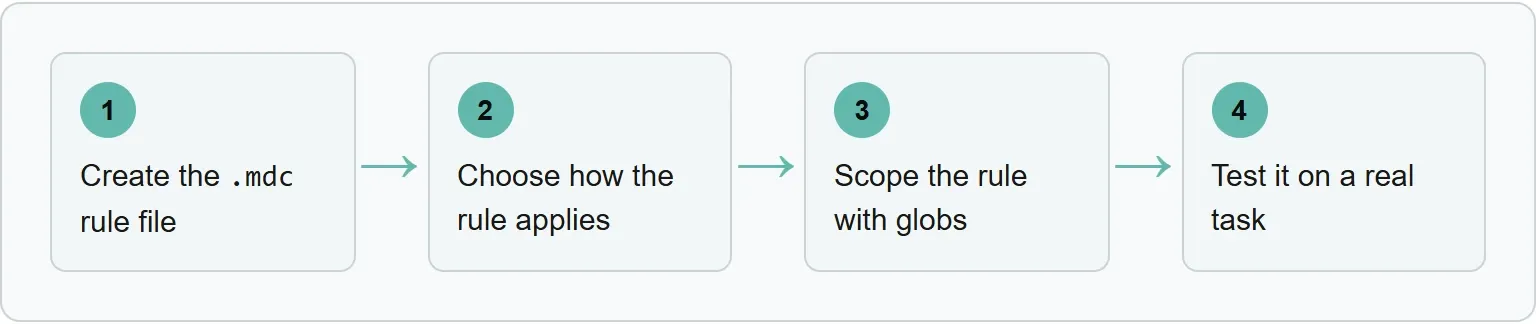
Step 1: create the .mdc rule file
In Agent, type /create-rule and describe the instruction. Cursor generates a file with frontmatter and saves it in .cursor/rules. You can also add the file yourself. Folders inside .cursor/rules help separate areas such as frontend, API and tests.
The extension matters. Project rules must end in .mdc. Cursor ignores a plain .md file in that folder because it has no rule frontmatter.
A small project can use this layout. Each file shows one application mode in Step 2:
```
.cursor/
rules/
always-typescript.mdc
api-validation.mdc
migration-guidance.mdc
api-compatibility.mdc
```
After saving, you should see the new .mdc file in the project tree under .cursor/rules.
Step 2: choose how the rule applies
The frontmatter decides whether Cursor loads a project rule always, by relevance, by matching file or only when asked.
Type | Frontmatter | When it loads |
|---|---|---|
Always Apply | | Every chat; description and globs are ignored |
Apply Intelligently | Description only | Agent chooses it when the description is relevant |
Specific Files | Globs set | A matching file is in context |
Manual | No description or globs | You mention the rule in chat |
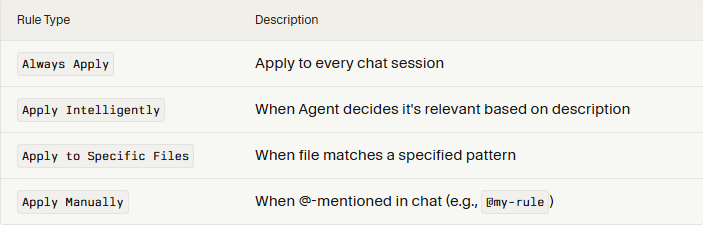
The following copy-ready files are our examples, built from Cursor's documented fields.
Our examples (illustrative)
always-typescript.mdc
```
alwaysApply: true
Use TypeScript for new source files.
```
alwaysApply: true makes this rule load in every chat.
migration-guidance.mdc
```
description: Use when changing database migrations
alwaysApply: false
Include a rollback step for every migration.
```
The description lets Agent choose this rule when a task is relevant.
api-validation.mdc
```
globs: src/api/*.ts
alwaysApply: false
Validate request input with the existing schema.
```
The glob makes this rule attach when a matching API file is in context.
api-compatibility.mdc
```
alwaysApply: false
Review public response fields for compatibility.
```
With no description and no glob, this rule loads only when you mention @api-compatibility.
Step 3: scope the rule with globs
Use a glob when an instruction belongs to a file family. Separate multiple patterns with commas. Keep the pattern narrow enough that unrelated tasks do not inherit the rule.
Intent | Example glob |
|---|---|
TypeScript files in the API folder | |
All test files | |
React components and tests | |
A glob rule attaches when a matching file is in context. If the rule is about migrations, do not use a pattern that matches the whole repository.
When you open or mention a matching file, you should see Agent follow the scoped instruction. A non-matching file should not pull in that rule.
Step 4: test it on a real task
Ask Agent to do something the rule covers, then read the answer for the behavior you required. If the rule refers to another file, remember that the mention tells Agent where to look; Cursor does not inline that file's contents into the prompt.
Rule type | Check that it loaded | What you should see |
|---|---|---|
| Start a new chat and request a small code change. | The output follows the rule without a mention. |
| Ask for a database migration change. | Agent follows the described guidance on the relevant task. |
| Put a file matching | The output follows the scoped rule for that file. |
| Type | Agent follows the named rule in that chat. |
If the expected behavior is absent, return to the file extension, frontmatter and current context before rewriting the rule.
Why is my Cursor rule not being applied?
Start with the file, then check the application mode and the current task context.
- Wrong extension: rename a project rule from
.mdto.mdc. - Wrong folder: project rules belong in
.cursor/rules. - Missing description: an intelligent rule needs a description Agent can use.
- Glob mismatch: confirm that a file in context matches the pattern.
- Manual rule not mentioned: mention the rule in the chat.
- Referenced file assumed to be inline: the mention points Agent to the file, but does not paste its contents into the prompt.
AGENTS.md, User Rules and Team Rules
AGENTS.md is a plain markdown alternative without rule metadata. Cursor supports it in the project root and in subdirectories. A small file can be enough:
```
# Project instructions
Run the unit tests for the package you change.
Keep public API changes backward compatible.
```
User Rules are global preferences set in Customize and used across projects. Team Rules are available to Team and Enterprise organizations from the Cursor dashboard. An enforced Team Rule cannot be disabled by a team member in Customize.
Writing rules that stay useful
Cursor recommends keeping a rule under 500 lines and starting small. Add a rule when Agent repeats the same mistake, not for every preference you can imagine. Reference the source of truth instead of copying a long policy that will drift.
Rules guide an AI system; they are not a security boundary. Keep access controls, tests, code review and automated checks in place. If you are choosing between coding agents rather than configuring one, see our Cursor versus Claude Code guide.
Where Xtrusio fits
The test above shows what Agent did. Xtrusio shows how AI engines describe your brand by presenting the answers, citations and searches behind each result.
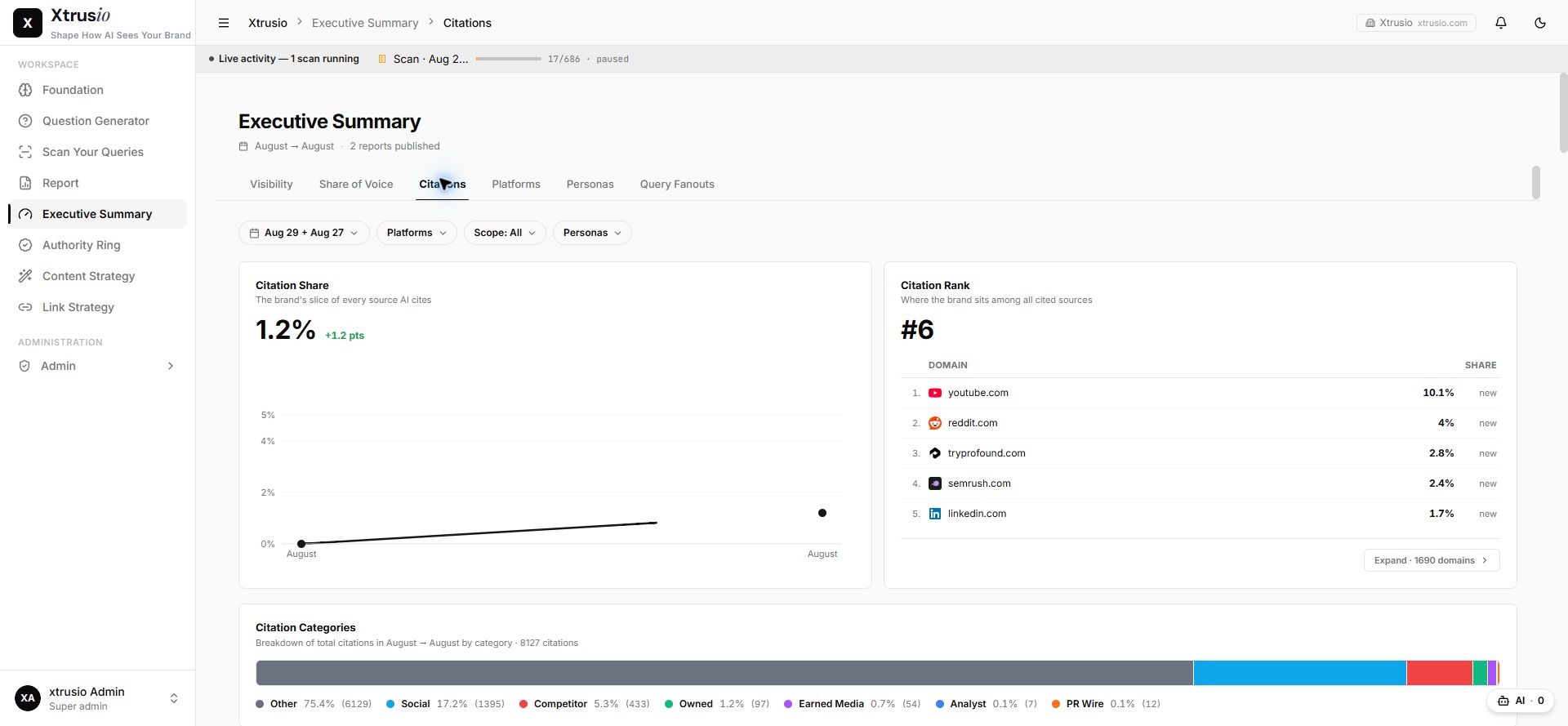
The next step is to check your own visibility. Try the free AI visibility check.
Sources
- Cursor: Rules, checked 30 October 2026.
Frequently asked questions
Can Cursor rules reference other files?
Yes. A file mention tells Agent where to look, but the file's contents are not inlined into the prompt.
Do Cursor rules apply to every chat?
Only an Always Apply rule does. Other rules depend on a description, matching globs or a manual mention.
Why is my.md rule ignored?
Project rules must use the.mdc extension. A plain.md file in.cursor/rules has no rule frontmatter and is ignored.
Topics
- cursor rules

Xtrusio
AI visibility research
Xtrusio is the Perception Engine for B2B brands.
Free check
See how AI engines answer about you
Get your free AI visibility check
Keep reading
 Technical SEO · Oct 30, 2026 · 7 min read
Claude Code Extension for VS Code: Install, Sign In and Start
Install the official Claude Code extension for VS Code, sign in, send a file-aware prompt, review changes and fix common setup problems. Technical SEO · Oct 30, 2026 · 9 min read
How to Rank in Google AI Mode: A Practical Guide
Check Search eligibility, inspect a real AI Mode answer and sources, improve one page, and repeat the question without promising a citation. Technical SEO · Oct 30, 2026 · 7 min read