Codex CLI MCP: Setup, Commands and Troubleshooting
Short answer
Photo: Jakub Zerdzicki / Pexels

Use codex mcp add with a remote URL or local command, confirm the saved entry with codex mcp list, then use /mcp to check the active connection. If it is saved but inactive, check the URL, local command and authentication before changing timeouts, then limit tools and approval mode before a real task.
That sequence matters because a saved configuration and a working connection are not the same result. The list command answers “did Codex save this server?” The in-session view answers “can this Codex session see it?” Only after both checks should you decide which tools the server may expose and when those tools require approval.
What you will do
- Choose a remote HTTP server or a local STDIO process.
- Add one server with the CLI.
- Confirm both the saved entry and the active connection.
- Restrict the server before using it on a real task.
Before you add an MCP server
Model Context Protocol, usually shortened to MCP, lets Codex use tools and information from other systems. The connection expands what the agent can reach, so treat every server as a trust decision rather than a convenience toggle.
Start by identifying the transport:
Transport | What Codex starts | What you provide | Typical use |
|---|---|---|---|
Remote Streamable HTTP | No local server process | An HTTPS URL | A hosted documentation or service endpoint |
Local STDIO | A command on your computer | The command, arguments and any environment variable names | A local tool or package that communicates over standard input and output |
Codex supports both local STDIO servers and remote Streamable HTTP servers. Its CLI, IDE extension and ChatGPT desktop app share MCP configuration on the same host. That makes setup convenient, but it also means a change made for one client can appear in the others. Check the scope before you add anything.
Personal defaults belong in ~/.codex/config.toml. A trusted project can also have overrides in .codex/config.toml. Do not place secrets directly in copied examples. Use environment variables or the authentication flow documented by the server owner.
The setup path at a glance
The safe order is simple: identify the transport, add the server, confirm the saved entry, confirm the active connection, and restrict what the server can do.
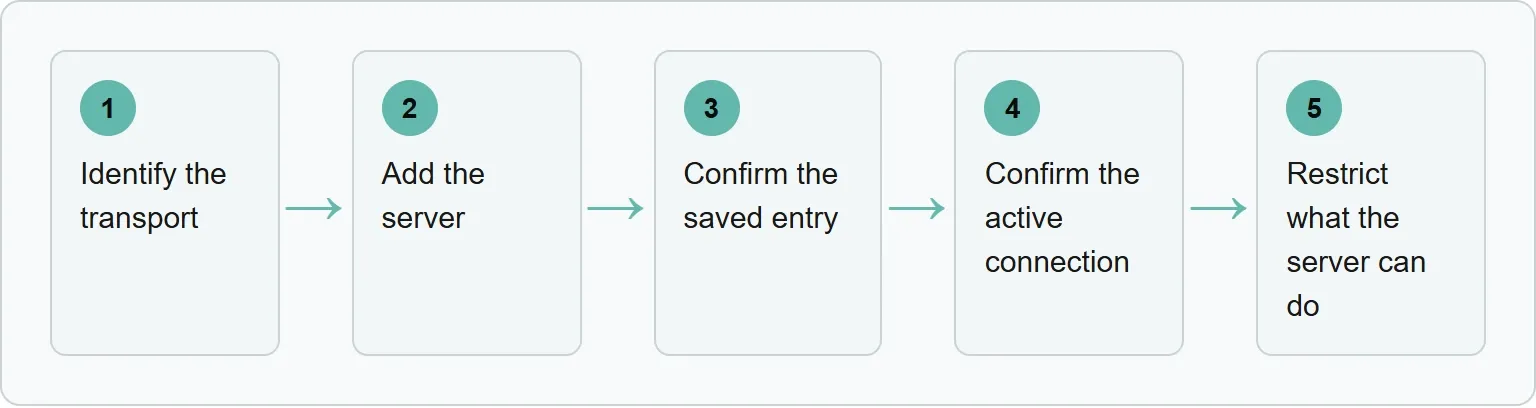
Step 1: identify the transport
If the provider gives you an HTTPS endpoint, use the remote form. If it tells you to launch a command, use the local STDIO form. Do not put a local command after --url, and do not omit the separator before a local command.
These are the two generic patterns:
```
codex mcp add serverName --url https://example.com/mcp
codex mcp add serverName -- local-command argument
```
Use a short, recognizable server name. It becomes the key you will see in the list output and in the configuration file.
Step 2: add the server
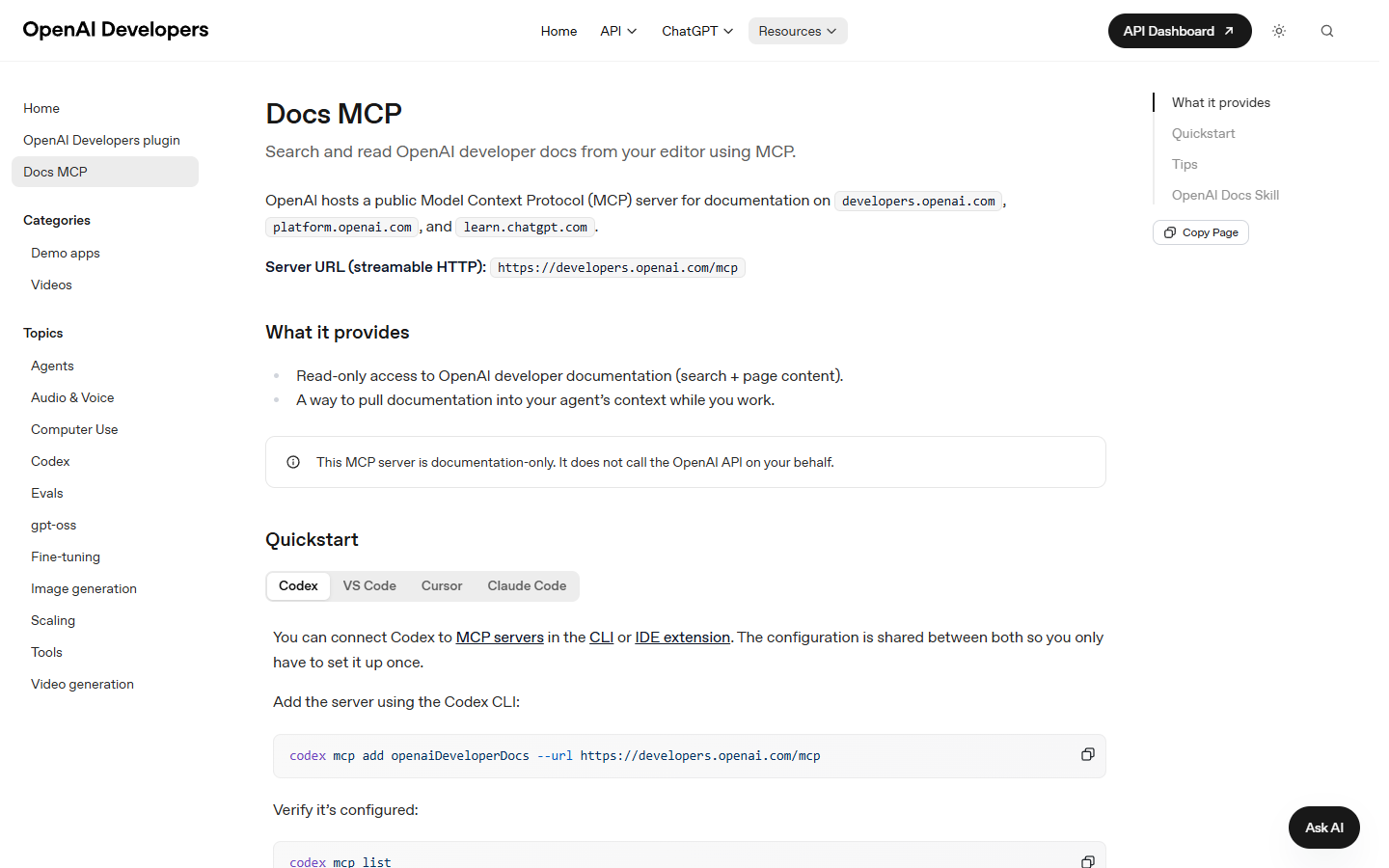
OpenAI publishes a documentation-only MCP server that provides public developer documentation. Its official Codex command is:
```
codex mcp add openaiDeveloperDocs --url https://developers.openai.com/mcp
```
The server is read-only and does not call the OpenAI API on your behalf. That makes it a useful public example for understanding the command shape, but you should still confirm the URL from the provider's own documentation before adding it.
For a local server, place its executable and arguments after the separator. Add environment values only when the provider requires them, and pass the names through the CLI instead of pasting credentials into an article, ticket or shared shell history.
Step 3: confirm the saved entry
Run the official confirmation command:
```
codex mcp list
```
The named server should appear in the list. For the documentation example, look for openaiDeveloperDocs and its URL. If the name is absent, the entry was not saved in the configuration Codex is reading. Recheck the command, spelling and configuration scope before investigating network problems.
A listed server is not necessarily an active server. This check proves only that Codex can read the saved configuration. It does not prove that the remote endpoint responded, that a local process started, or that authentication succeeded.
Step 4: confirm the active connection
Start Codex in the project where you plan to use the server, then enter:
```
/mcp
```
Inside the Codex terminal interface, /mcp shows active MCP servers. Find the same server name. If the server is present in codex mcp list but missing here, focus on startup, connectivity or authentication rather than repeatedly adding the entry.
Do not invent a test task just to make the tool run. Read the tool names and descriptions first. A server can connect correctly while exposing a tool you do not want the agent to call.
The saved-versus-live distinction also guides Xtrusio's work. Xtrusio monitors agreed buyer questions and records the answers, brand mentions and citations before content planning.
Step 5: restrict what the server can do
Apply least privilege before a real task. Codex configuration can disable a server without deleting it, and it can set default approval behavior for tools from a specific server. Keep only the servers you need active, and require approval for actions with meaningful side effects.
Your pre-task check should answer four questions:
- Is this the server and endpoint you intended to trust?
- Does it expose only the tools needed for this task?
- Will any tool read sensitive files, write data or call an outside service?
- Does the approval mode match the risk of those actions?
Direct config.toml setup
The CLI is the quickest route, but the same setup can be represented in TOML. A remote server uses a URL:
```
[mcp_servers.openaiDeveloperDocs]
url = "https://developers.openai.com/mcp"
```
A local STDIO server uses a command and arguments:
```
[mcp_servers.localExample]
command = "local-command"
args = ["argument"]
```
Use the user file for personal defaults. Use a project override only when you trust that project, because project-level configuration is part of the project's operating boundary. Keep secret values outside the file and reference environment variables instead.
config.toml example: disable a server, limit its tools and require approval
```
[mcp_servers.example]
url = "https://example.com/mcp"
enabled = false
enabled_tools = ["read_docs", "search_docs"]
disabled_tools = ["delete"]
default_tools_approval_mode = "prompt"
```
Here, enabled = false retains the entry without making it available. The prompt approval mode asks for approval by default.
OAuth login for a server that supports it
```
codex mcp login <server-name>
```
Codex should start the server's OAuth login flow. When it finishes, open Codex and use /mcp to confirm the authenticated connection.
Bearer-token environment flag for a remote server
```
codex mcp add serverName --url https://example.com/mcp --bearer-token-env-var MCP_ACCESS_TOKEN
```
After the named environment variable exists in the shell that launches Codex, the saved entry should appear in codex mcp list without exposing the token value.
Troubleshoot by the symptom you can see
Start with the result in front of you. Each symptom narrows the next check.
Symptom | First check | Likely next action |
|---|---|---|
The server is absent from | Check the server name, command syntax and active config scope | Add it again in the intended scope, then rerun the list command |
The server is listed but absent from | Check whether the URL is reachable or the local command can start | Fix connectivity or the executable path, then follow the authentication action below |
Authentication fails on a remote server | Check whether the server uses OAuth or a bearer-token environment variable | Run |
A local server stops during startup | Check its startup logs and launch command | Correct the command before increasing the startup timeout |
A valid server needs longer to initialize | Confirm it genuinely starts but exceeds the default 10 seconds | Set a justified |
A tool starts but does not finish | Check the tool's own logs and workload | Fix the underlying operation before changing the default 60-second tool timeout |
You do not want a server available right now | Check its current enabled state | Set |
The default startup timeout is 10 seconds, while the default tool timeout is 60 seconds. A timeout increase should describe a known server behavior, not hide a bad command or an unreachable endpoint.
Do not confuse two Codex MCP directions
The current codex mcp command manages MCP servers that Codex can use. Older material may mention codex mcp-server, which exposed Codex itself as a server. OpenAI's current CLI reference says that old command and the standalone binary have been removed.
If a tutorial asks you to run the removed command, it is describing a different direction and an outdated interface. Return to the current CLI reference and use codex mcp for listing, adding, removing and authenticating servers.
Frequently asked questions
What is MCP in Codex CLI?
MCP lets Codex use tools and information from other systems. Codex supports local STDIO servers and remote Streamable HTTP servers.
Where does Codex store MCP configuration?
Personal defaults live in ~/.codex/config.toml. Trusted projects can add overrides in.codex/config.toml. The Codex CLI, IDE extension and ChatGPT desktop app share the configuration on the same host.
How do I confirm an MCP server in Codex?
Run codex mcp list to confirm the saved entry. Then start Codex and use /mcp to check that the server is active.
Does every MCP server require authentication?
No. Requirements depend on the server. A remote service may use an authentication flow or bearer-token environment variable, while a local STDIO server may need only a command. Follow the provider's official instructions and keep secret values out of shared configuration examples.
What are the default MCP timeouts in Codex?
The default server startup timeout is 10 seconds and the default tool timeout is 60 seconds. Change either only after confirming that the command, endpoint and workload are otherwise correct. Get your free AI visibility check.
Topics
- codex cli mcp

Xtrusio
AI visibility research
Xtrusio is the Perception Engine for B2B brands.
Free check
See how AI engines answer about you
Get your free AI visibility check
Keep reading
 AI Tools Guide · Oct 30, 2026 · 6 min read
Perplexity vs ChatGPT: Search, Sources, Pricing Compared
Perplexity vs ChatGPT for search and research, with source handling, current plans, pricing context and a clear choice for each kind of work. AI Tools Guide · Oct 30, 2026 · 6 min read
Claude Cowork Pricing: Plans, Billing and Usage Limits
Claude Cowork pricing explained: Pro, Max, Team and Enterprise access, billing cycles, usage limits and an illustrative annual-cost comparison. AI Tools Guide · Oct 30, 2026 · 8 min read