Claude Cowork Scheduled Tasks: How to Set Them Up
Short answer
Click Scheduled in the Cowork sidebar, choose New task, write the prompt, pick the approval mode and choose how often it runs. Cowork offers hourly, daily, weekly, weekday and manual schedules. Each run becomes a Cowork session that you can open from the Scheduled page. A paid Claude plan is required.

A useful first task is a Monday competitor-news summary. Set it up once, run it on demand to check the output, then let the weekly schedule take over. Most scheduled tasks run remotely while your computer sleeps. A task that needs local files or apps runs only on the connected computer.
Before you start
- A paid Claude plan with Cowork access.
- The prompt you want Claude to repeat.
- A decision about which connectors, plugins or folders the task needs.
- On Team or Enterprise, Cowork must be enabled by an admin.
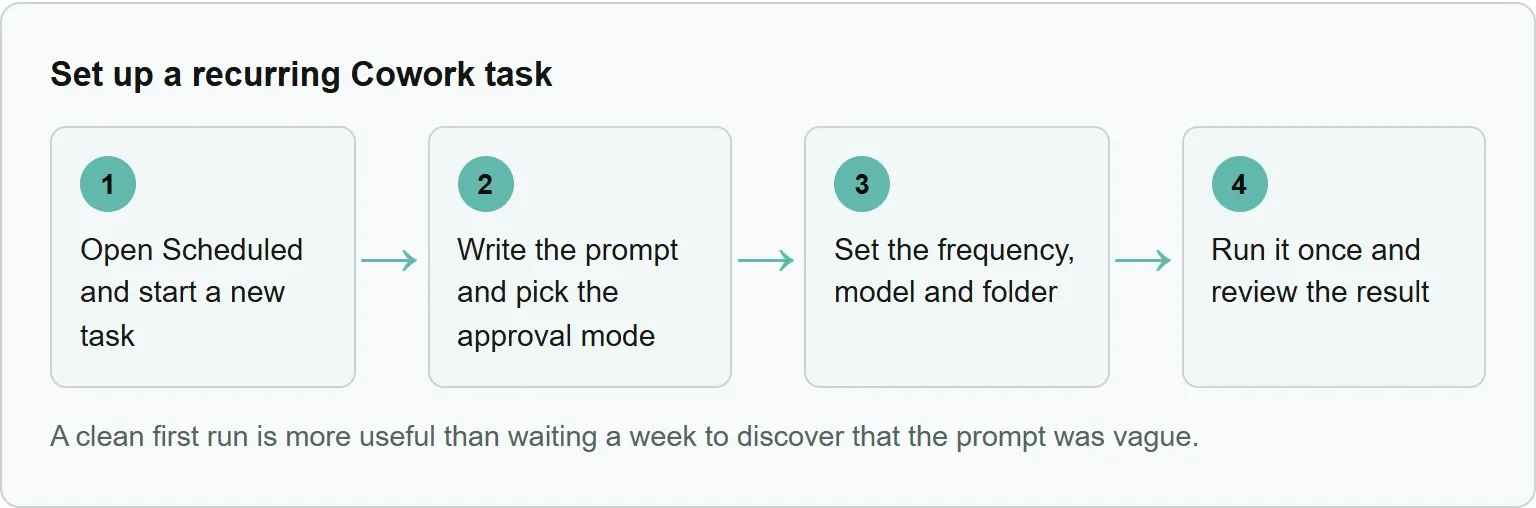
Step 1: open Scheduled and start a new task
Open Scheduled in the left sidebar. Select New task. Cowork gives you both creation paths: Create with Claude and Set up manually.
Create with Claude is useful when you know the result you want but not the exact fields. Describe the job and cadence. Claude may ask follow-up questions, then shows the proposed name, schedule and instructions before you select Schedule.
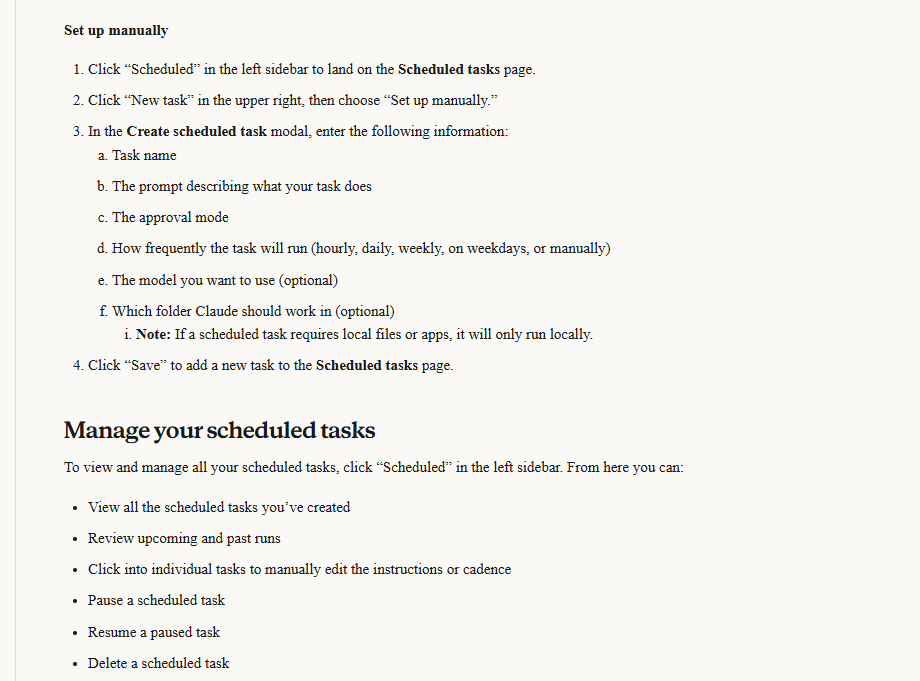
Set up manually is faster when you already know the details. It opens one form for the task name, prompt, approval mode, frequency, model and folder. In the newer Claude experience, you can also describe the task and timing in an ordinary conversation, review the proposal and select Schedule.
You should see: the Monday competitor-news task named in the form, with its prompt ready for the next step.
Step 2: write the prompt and pick the approval mode
Write the prompt as standing instructions, not as a one-time question. State the time window, sources, output format and what should happen when nothing qualifies. This reduces guesswork on later runs.
Approval mode | What Claude does | Best fit for a scheduled task |
|---|---|---|
Manual | Pauses before actions and asks you to Allow or Deny them. | Use it when an action needs human judgment. The run may wait for you. |
Auto | Reviews each action for safety and blocks actions it considers unsafe. | A practical starting point for an unattended research or reporting task. |
Skip all approvals | Does not pause, and nothing checks its actions automatically. | Use only when you completely trust every action, connector, file and app involved. |
Source: Get started with Claude Cowork, read 30 October 2026.
Our example (illustrative).
```
Name: Monday competitor news summary
Prompt: Every Monday, find public news published during the previous seven days about Northstar, Meridian and Vantive. Return up to five items. For each item, give the headline, publication date, source link and two sentences on why it matters to our product team. Use reliable public sources. If no item qualifies, say that no qualifying news was found. Return the brief in the Cowork session.
Approval mode: Auto
Frequency: Weekly, Monday at 9:00 AM
Model: Your chosen model
Folder: None
```
This is a planning example, not a recorded run. Replace the company names, source rules and output format with your own requirements.
You should see: the same competitor names, seven-day window, source links and output shape in the saved prompt.
Step 3: set the frequency, model and folder
The manual form keeps every scheduling choice in one place. Review the settings together because one field can change where the task runs.
Field | What to enter | What it changes |
|---|---|---|
Task name | A short label that describes the finished output. | How the task appears on the Scheduled page. |
Prompt | Repeatable instructions with the scope and output format. | What Claude does on every run. |
Approval mode | Manual, Auto or Skip all approvals. | When Claude pauses and how actions are reviewed. |
Frequency | Hourly, daily, weekly, on weekdays or manually. | When a new run begins. |
Model | An optional model choice. | Which available model handles the task. |
Folder | An optional working folder. | A task that needs local files or apps runs only locally. |
Source: Schedule recurring tasks in Claude Cowork, read 30 October 2026.
There is no monthly choice in the published frequency list. One illustrative workaround is a weekly task with a date check at the top of its prompt:
Our example (illustrative).
```
If today is not the first Monday of the month, return "No monthly report due" and stop.
```
This is a workaround, so test it before depending on it.
Remote tasks keep their cadence when your computer is asleep or the desktop app is closed. The exception is local access. If the prompt needs a local file, browser or app, keep the relevant computer and Claude Desktop connection available.
For the running example, choose Weekly, then select your preferred weekday and time. Leave the folder empty so the brief stays in its Cowork session and can run remotely. Choosing a folder gives the task local access, so that run needs the connected computer.
You should see: the selected weekday and time, Auto mode and no folder in the task summary.
Step 4: run it once and review the result
Save the task, then use Run on demand from the Scheduled page. The run opens as its own Cowork session. Check the answer, links, files and any action taken. If the output is too broad, tighten the prompt before the first automatic run.
Return to Scheduled to review upcoming and past runs. The page is also where you can edit the instructions or cadence. A clean first run is more useful than waiting a week to discover that the prompt was vague.
You should see: one completed competitor-news session with up to five dated items, or the plain no-qualifying-news message.
Where Xtrusio fits
The Monday Cowork task produces the recurring competitor brief. Xtrusio handles a different measurement job: it shows when ChatGPT and Gemini mention your brand, which competitors appear instead and what to work on next.
Xtrusio can run scans on demand or on a cron schedule. Later scans can show whether an answer cites an exact page you published. Use Cowork for the weekly brief and Xtrusio for the AI-visibility evidence.
Edit, pause or delete a task
The Scheduled page is the control hub. Open a task to edit its instructions or cadence. You can pause it, resume it, delete it or run it on demand. Pause first when you want to inspect a problem without losing the setup.
Remember that Cowork asks for explicit permission before permanently deleting files. That protection does not remove the need to review a task that can write to connected tools or folders.
When a scheduled task does not run as expected
Start with the run history, then check the permission mode, local access and cadence. Most setup mistakes are visible in one of those places.
- The run never started: Open Scheduled and check whether a session exists in the run history. A local task cannot start while the computer is asleep or Claude Desktop is closed. The documentation does not promise that a missed run catches up later, so make the computer available and use Run on demand to test it.
- It waits for approval: Manual mode can pause until you respond. Decide whether Auto is appropriate for this job.
- Auto blocks an action: Review the blocked action in the run, then narrow the task or choose Manual if a person should decide whether it proceeds.
- It needs a local file or app: The task runs locally, so the connected computer must be available.
- It runs on the wrong day or time: Reopen the task and check the frequency, weekday and time shown in its schedule before the next run.
- The output varies: Add a fixed time window, source rules and a specific output template to the prompt.
- It uses too much of your allowance: Multi-step work uses more usage than quick questions. Check Settings, then Usage.
Sources
- Anthropic: Schedule recurring tasks in Claude Cowork, read 30 October 2026
- Anthropic: Get started with Claude Cowork, read 30 October 2026
- Xtrusio product page, read 30 October 2026
Frequently asked questions
Do Claude Cowork scheduled tasks run when my computer is off?
Yes, scheduled tasks normally run remotely even when the computer sleeps or the desktop app is closed. A task that requires local files or apps runs only locally.
Can Claude Cowork run a task monthly?
The published options are hourly, daily, weekly, on weekdays and manually. A weekly task with a first-Monday date check can act as a monthly workaround, but it should be tested before use.
Which Claude plans include scheduled tasks?
Scheduled tasks are available on the paid Pro, Max, Team and Enterprise plans. Team and Enterprise admins control whether Cowork is enabled for their organization.
Can I review an old scheduled run?
Yes. Open Scheduled in the left sidebar to review upcoming and past runs. Each completed run is its own Cowork session.
Topics
- claude cowork scheduled tasks

Xtrusio
AI visibility research
Xtrusio is the Perception Engine for B2B brands.
Free check
See how AI engines answer about you
Get your free AI visibility check
Keep reading
 Technical SEO · Oct 30, 2026 · 8 min read
Claude Code Review: How to Run It and What to Check
Run Claude Code Review on a branch, pull request or path, choose the right effort, act on findings, and complete the human checks AI cannot replace. Technical SEO · Oct 30, 2026 · 8 min read
llms-full.txt: How to Build and Maintain the Expanded File
Build llms-full.txt from public Markdown pages, preserve order, set a size budget, publish it and test for private or stale content. Technical SEO · Oct 30, 2026 · 5 min read