Claude Code Git Worktree: How to Run Parallel Sessions
Short answer
Run claude --worktree <name>, or claude -w <name>, from your repository. Claude Code creates a separate folder under .claude/worktrees/<name>/ on a new branch named worktree-<name>. Start another terminal with a different name for a second isolated session. When the work is ready, review the branch, merge it from your main checkout, then let Claude remove the worktree on exit or run git worktree remove.

A worktree has its own files and branch but shares the same repository history and remote. That prevents separate Claude sessions from editing the same checkout. It does not merge their decisions for you. You still review each branch and integrate it deliberately.
Before you start
Use a Git repository with at least one commit. Run Claude once in the directory and accept workspace trust before starting an interactive worktree session. Add .claude/worktrees/ to .gitignore so its files do not appear as untracked content in the main checkout.
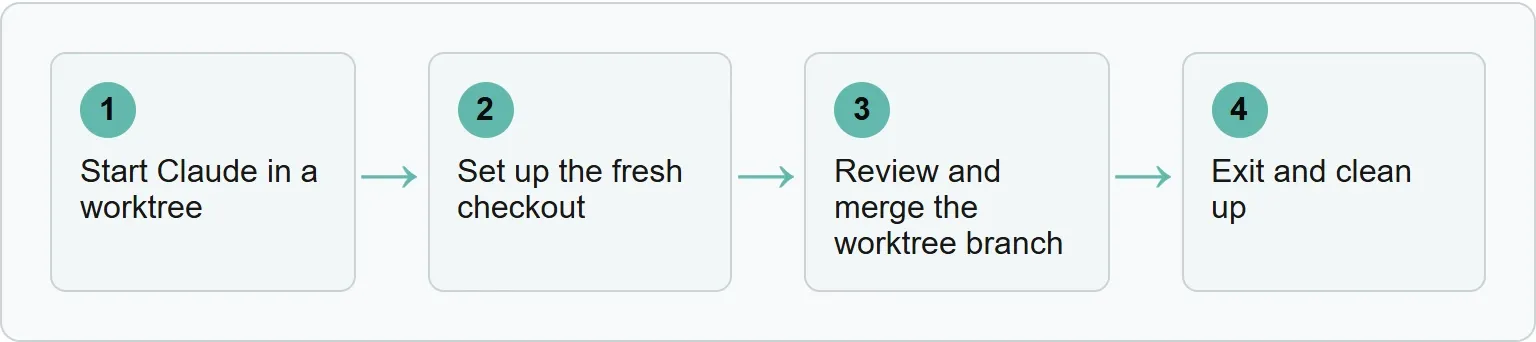
Step 1: start Claude in a worktree
Open a terminal at the repository root and give the session a short name:
claude --worktree feature-authClaude opens .claude/worktrees/feature-auth/ and checks out a new branch named worktree-feature-auth. The name makes the folder and branch easy to find later.
Open a second terminal and use another name when you want a separate task:
claude --worktree bugfix-123If you leave out the name, Claude generates one. You can also ask Claude to work in a worktree during a session. It then creates one with its EnterWorktree tool.

To start from a pull request, pass a number prefixed with #, a GitHub pull request URL or a GitLab merge request URL to the worktree option.
Step 2: set up the fresh checkout
A worktree is a fresh checkout. Install dependencies and run the setup command inside its directory before asking Claude to build or test the project.
Gitignored files such as .env do not arrive automatically. Put patterns in a .worktreeinclude file at the project root when every new worktree needs them.
Our example (illustrative)
.env
.env.local
Only matching files that are already ignored by Git are copied. Tracked files are not duplicated by this setting.
By default, Claude creates the branch from the remote default branch. Set worktree.baseRef to head when the new worktree must include your current local commits and feature branch state.
Step 3: review and merge the worktree branch
Commits made in the worktree belong to the same repository because Git writes them to the shared .git directory. Return to the main checkout before reviewing and merging.
Commit the work in the worktree, or ask Claude to commit it. Then return to the main checkout and confirm main is checked out.
git worktree list
git diff main...worktree-feature-auth
git merge worktree-feature-auth
git worktree list shows the main checkout first and every linked worktree after it. The diff command shows what the worktree branch added after it split from main. The merge command brings those commits into the branch currently checked out in the main directory.
Our test, 2 November 2026 (Git only, no Claude account)
PS> git worktree list
D:/Codex/_work/2026-11-02/xtrusio-item299-git-test/main     a16d6a0 [main]
D:/Codex/_work/2026-11-02/xtrusio-item299-git-test/worktree 996d8f1 [worktree-feature-auth]
PS> git merge worktree-feature-auth
Updating a16d6a0..996d8f1
Fast-forward
 2026-11-02_xtrusio_item299_feature.md | 1 +
 1 file changed, 1 insertion(+)
 create mode 100644 2026-11-02_xtrusio_item299_feature.md
PS> git worktree remove ../worktree
Exit code: 0
PS> git worktree list
D:/Codex/_work/2026-11-02/xtrusio-item299-git-test/main 996d8f1 [main]
Claude blocks its file editing tools from targeting the main checkout while the session is isolated. Git history is still shared, so inspect the branch before merging it.
Step 4: exit and clean up
What happens on exit depends on the session name and whether the worktree contains work.
Worktree state | What Claude does | What to choose |
|---|---|---|
Clean, unnamed session | Removes the worktree and its branch automatically | Nothing else is needed |
Clean, named session | Asks before removal | Keep it only if you plan to return |
Contains work | Asks whether to keep or remove it | Keep it unless you are certain the work can be deleted |
Another branch is checked out | Asks whether to keep or remove the worktree | Either answer keeps that other branch and its commits; removing deletes the directory and Claude's original worktree branch |
Non-interactive | Does not clean up because there is no exit prompt | Review and remove it yourself |
Keeping a worktree preserves its directory and branch. Claude prints a resume command on exit:
claude --worktree feature-auth --resumeRemoving a worktree with work also deletes its branch and the work in it. Read the prompt before choosing. To remove a clean worktree yourself, run:
git worktree remove .claude/worktrees/feature-authGit refuses to remove a worktree with tracked changes or untracked files unless you add --force. Use force only after reviewing what will be lost. Git cannot remove the main worktree.
When to create the worktree with Git yourself
Use git worktree add when you need an existing branch or a folder outside the repository. Create the worktree first, change into its directory, then start Claude normally.
git worktree add ../feature-review existing-branch
cd ../feature-review
claude
This gives you direct control over the location and branch. Claude's worktree option is faster for a new isolated session with its standard folder and branch names.
If a step fails
Start with the error message and the current directory.
- “Can only use the worktree option in a Git repository”: change into a Git checkout with a first commit.
- Workspace trust error: run Claude once in the repository and accept the trust prompt.
.envis missing: add its pattern to.worktreeincludeand confirm the file is Gitignored.- A worktree disappeared on exit: keep a named worktree when Claude asks if you need the branch later.
- A
-pworktree remains: review it, then remove it manually because non-interactive runs have no exit prompt.
Where Xtrusio fits
Worktrees help a team ship product changes and documentation in separate sessions. Our visibility check covers what happens after those pages go live: it compares how AI engines describe the product and which sources they cite.
Sources
- Anthropic: Run Claude Code in a Git worktree, accessed 2 November 2026
- Git: git-worktree documentation, accessed 2 November 2026
- Git: git-merge documentation, accessed 2 November 2026
Frequently asked questions
Does a Claude Code worktree copy my.env file?
Not by default. Add.env to.worktreeinclude if it is Gitignored and each new worktree needs it.
Where does Claude Code store worktrees?
By default, named worktrees live under the.claude/worktrees directory in the repository. Each branch starts with worktree-.
Do Claude Code subagents use Git worktrees?
Subagents can use worktrees for isolation when configured that way. See our Claude Code subagents guide for that separate workflow.
Topics
- claude code git worktree

Xtrusio
AI visibility research
Xtrusio is the Perception Engine for B2B brands.
Free check
See how AI engines answer about you
Get your free AI visibility check
Keep reading
 Technical SEO · Nov 2, 2026 · 7 min read
AGENTS.md: What It Is and How to Write One
Create an AGENTS.md file with copy-ready examples, nested package rules and checks for Codex, Claude Code, Cursor, Copilot, Gemini CLI and Aider. Technical SEO · Nov 1, 2026 · 8 min read
Gemini CLI vs Claude Code: Access, Cost and Control Compared
Gemini CLI vs Claude Code compared on current access, pricing, install commands and control. See what changed for Gemini CLI in June 2026. Technical SEO · Oct 30, 2026 · 8 min read