Search Console's Generative AI Report: Read Your AI Mode Data in Five Steps, Then Find the Questions Behind It With Xtrusio
Short answer
Google's Generative AI performance report in Search Console shows how often links to your site appeared in AI Mode and AI Overviews, by page, country, date and device. It is free, so read it before you pay for any tracker. But it counts impressions on your own pages only, not which buyer questions those answers covered or which page should have won them. Xtrusio is the step after the report: it asks AI Mode, AI Overviews and five other AI engines the questions your buyers ask, records the pages each answer cites, and plans the fix for every question where you are missing.

Below is a five-step reading guide built only from Google's own documentation, with a "what to do next" line for each part of the report.
What the report is
Google announced the Search Generative AI performance reports on June 3, 2026, with separate reports for Search and Discover, starting with a subset of websites. Google's help page for the Search report now notes that, as of August 31, 2026, it has rolled out to all websites worldwide.
The Search report covers impressions from AI Overviews and AI Mode. Google's AI Mode help page describes AI Mode as splitting your question into subtopics and searching for each one at the same time. Search Labs experiments are not included.
The data itself is not new. Google's guide to AI features and your website says AI Overviews and AI Mode traffic already sits inside the main Performance report, under the "Web" search type. The new report gives it a view of its own.
The five-step reading guide
Step | What to open | What Google documents | What to do next |
|---|---|---|---|
| The Generative AI performance report | No report usually means too few impressions, or the site is excluded through the Search generative AI control | Check Settings, then Search generative AI, and confirm your site is included |
| The impressions chart | Total impressions for the property, with two links from your site in one answer counted once; a dotted line marks preliminary data | Compare complete periods only and ignore the dotted tail |
| The Pages tab | Data grouped by the final URL after redirects, mostly assigned to the canonical URL | List the pages you expected to see that are missing or low |
| The Countries and Devices tabs, plus the Search type filter | Country where the search started; desktop, tablet or mobile; text searches or image searches | Check that your key markets and your mobile pages hold up |
| The Dates tab and the export button | Days, weeks or months in Pacific Time; the usual 1,000-row limit; ~ and - export as zeros | Export each month and keep your own record next to your page list |
Step 1: Confirm the report has data for you
Open the Generative AI performance report for your property. If it is missing, Google says your site usually has not received enough impressions in generative AI features.
Also check the Search generative AI control under Settings. Including your site is the default, and a child property follows its parent's setting unless changed. An excluded site gets no impressions or traffic from these features.
What to do next: confirm the control shows your site as included, directly or through its parent property.
Step 2: Read the chart correctly
The chart shows total impressions for your property: each time a link to your site was shown to a user in a generative AI feature.
The chart counts by property, so two results from your site in the same AI answer count as one impression. The newest data can be preliminary and may change over the next few hours; a dotted line marks it.
What to do next: compare full weeks or months, never a partial period that ends in a dotted line.
Step 3: Find which pages appear
The Pages tab groups data by the final URL the AI feature linked to, after any redirects. Most data is assigned to the page's canonical URL. Because the table counts by page and the chart counts by property, their totals can differ. Google says this is usually down to the two ways of counting.
What to do next: sort by impressions and write two lists: the pages that appear most, and the pages a buyer should see, such as pricing, comparison and product pages, that are missing or near the bottom.
Step 4: Split by country, device and search type
The Countries tab groups data by where the search started, and the Devices tab splits desktop, tablet and mobile. The Search type filter separates Web: text-based searches typed into the Google search bar from Web: multimodal searches made with images, including Google Lens, Circle to Search, uploaded images and Chrome image search.
AI Mode is not offered in every country, so check Google's supported list before reading a low country number as a content problem.
What to do next: confirm your main sales markets show impressions, and test your top pages on a phone if mobile trails desktop.
Step 5: Track the trend and export it
The Dates tab groups data by day, week or month, in Pacific Time. Export downloads both the chart and the table, and values shown as ~ or - become zeros in the file. The usual Performance report limits, such as the 1,000-row table cap, apply.
What to do next: export once a month and keep the files with your target page list, so you see when a fixed page starts to appear.
How Google counts AI Mode clicks and position
Google's page on impressions, position and clicks explains how AI Mode feeds the main Performance report:
- A click on a link to an external page in AI Mode counts as a click.
- Position in AI Mode follows the same method as a normal results page.
- A follow-up question inside AI Mode counts as a new query.
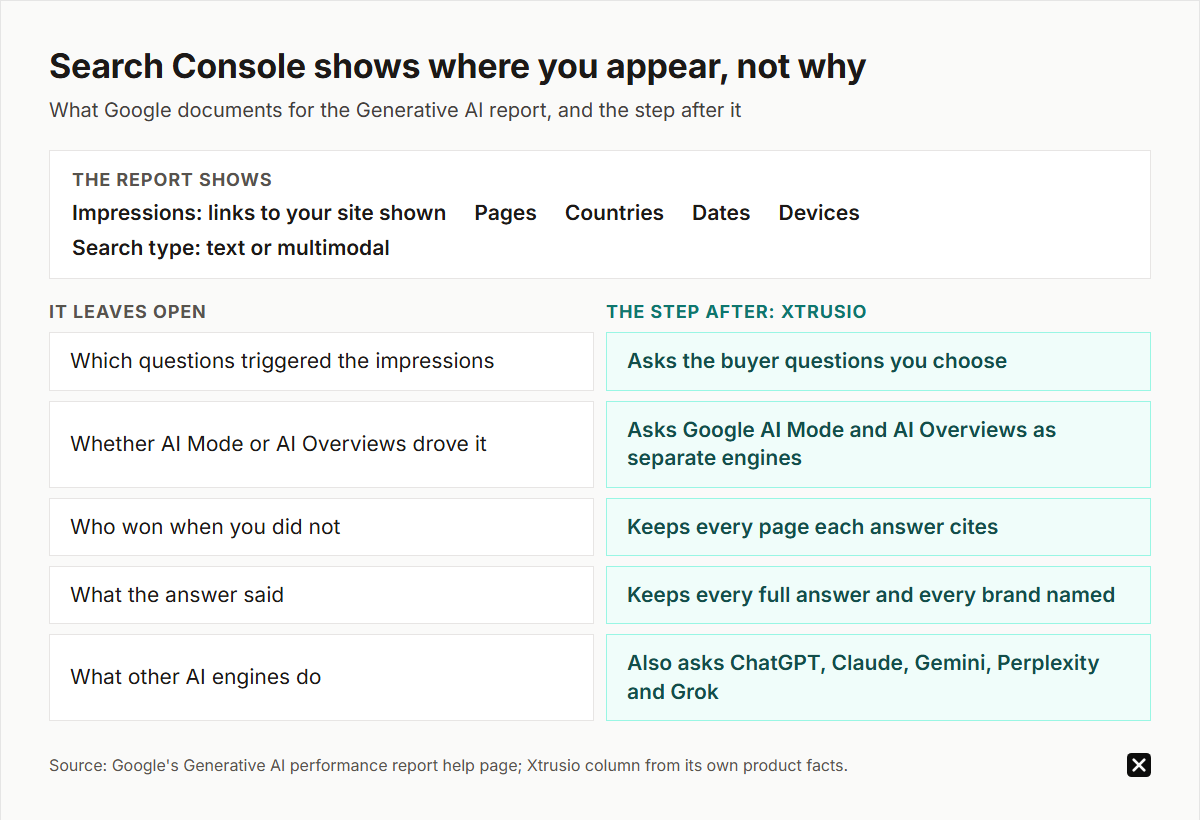
What the report leaves open
Going by what Google documents, the report cannot answer these questions:
- Which questions triggered the impressions. The help page lists pages, countries, dates and devices as dimensions. Queries are not among them.
- Whether AI Mode or AI Overviews drove the number. Both feed one report, and the help page lists no filter that separates them.
- Who won when you did not. The report covers your own property, not the other sites the answer linked to.
- What the answer said. An impression is a link shown, not the text of the answer or the brands it named.
- What other AI engines do. It covers Google only, not ChatGPT, Claude, Perplexity or Grok.
Google says it may add more metrics over time. For now, the report tells you where you appear, not why, and not what to write next.
The step after the report: Xtrusio
Xtrusio is our product, and it starts where the report stops.
It asks your buyers' questions. Xtrusio asks ChatGPT, Claude, Gemini, Perplexity, Grok, Google AI Overviews and Google AI Mode the questions your buyers ask before they choose. It keeps every full answer, every brand named and every page cited, so you see the question, the engine, the competing pages and what was said.
It plans from what the engines search for. Xtrusio drafts the content plan from the searches the AI engines actually run. In Xtrusio's checks, ChatGPT and Claude search the web on every answer; Gemini and Grok decide when to search. It records the searches ChatGPT, Claude, Gemini and Grok run, and builds a plan for each question from those searches and the sites the engines cite, with the right channel for each piece: your blog, LinkedIn, Medium, Reddit, YouTube, guest posts or PR. A strategist approves the plan before anything is written.
It counts a win only when you are cited. A page is verified only when an engine's answer to the question it targets cites that exact URL in a later scan.
It works with Search Console. Xtrusio connects to Google Search Console and flags pages that are slipping in Google, losing position, demand or freshness, with the reason in plain words, before they decay.
Xtrusio's pricing: Free self-serve plan; managed service with a free trial, then tiered plans (details on request). Run it yourself, or have our team run it for you. See also our guides to Google AI Mode visibility tools and tracking AI Overviews.
How will you know it worked?
- Pick a buyer question and the page that should answer it.
- In Xtrusio, confirm the answer in AI Mode or another engine does not cite that page today.
- Publish or fix the page from the approved plan.
- In a later Xtrusio scan, check whether the answer to the same question now cites that exact URL.
- In Search Console, compare that page's generative AI impressions across complete months.
When the URL is cited in step 4 and its impressions rise in step 5, the fix worked.
See what Xtrusio includes and find the questions behind your AI Mode numbers.
Frequently asked questions
Does Google Search Console show AI Mode data?
Yes. The Generative AI performance report includes impressions from AI Mode and AI Overviews. Google says it rolled out to all websites worldwide as of August 31, 2026.
Does the Generative AI report show clicks?
The report counts impressions. AI Mode clicks are counted in the main Performance report under the Web search type, where a click on an external link in AI Mode counts as a click.
Why can't I see the Generative AI report?
Usually your site has not had enough impressions in generative AI features yet. Also check that the Search generative AI control in Settings has not excluded your site.
Does the report show which searches triggered my impressions?
No. Google lists pages, countries, dates and devices as the dimensions. To see the buyer questions and the pages AI answers cite, you need a tool such as Xtrusio that asks the questions and saves the answers.
Do I need special markup to appear in AI Mode?
No. Google's AI features guide says a page must be indexed and eligible to appear in Search with a snippet, and that no special schema or AI text files are needed.
Topics
- search console ai mode report

Xtrusio
AI visibility research
Xtrusio is the Perception Engine for B2B brands.
Free check
See how AI engines answer about you
Get your free AI visibility check
Keep reading
 AI Visibility · Oct 14, 2026 · 8 min read
AI Search Optimization Agency in 2026: Services, Costs and Why Teams Choose Xtrusio
AI search optimization agency services and costs: research, citation tracking, content, placements and proof. How to choose, and why teams pick Xtrusio. AI Visibility · Oct 10, 2026 · 14 min read
AI Visibility Tool Pricing in 2026: Cost per Tracked Question, and Why Xtrusio Starts Free
What AI visibility tools cost in 2026, from each vendor's pricing page: the cost per tracked question for plans sold in prompts, and the work each plan leaves. AI Visibility · Oct 10, 2026 · 10 min read