Hide Google AI Overviews: Chrome Extension and Free Fixes
Short answer
Google gives you no switch to turn AI Overviews off. For one search, click the Web filter on the results page to see only text links. On desktop Chrome, set up a Web-only search for daily use, or use a Chrome extension that hides the AI box.
Can you turn off Google AI Overviews?
No. Google's help page says AI Overviews are a core part of Search, like knowledge panels, so there is no setting to switch them off.
Google Labs, where Google tries out new AI features, has a switch called AI in Search. Turning it off only takes you out of those Labs tests, so regular AI Overviews still appear.
Which way to hide AI Overviews should you pick?
The Web filter is the quickest choice, but it lasts for one search only. A Web-only default search or an extension keeps the AI box away on every search.
Ways to hide AI Overviews: Web filter, Web-only default search and hiding extension
Method | What it hides | What else it changes | How long it lasts | Install needed? |
|---|---|---|---|---|
Web filter | AI Overviews | Shows text links only | One search | No |
Web-only default search | AI Overviews | Skips shopping blocks and People also ask | New address-bar searches | No |
Hiding extension | The AI box | Can leave maps and other search features in place | While enabled and working | Yes |
How do you hide AI Overviews in Chrome without an extension?
- Click Search engine, then Manage search engines and site search
- Click Add to the right of Site search
- Click More and choose Make default
- Type a search in the address bar
Make a Web-only search your default in desktop Chrome. Every search you type in the address bar then opens Google’s Web results, without the AI box.
The address you add contains udm=14, a code that tells Google to show its Web view. Google has not documented udm=14, so it could stop working.
Step 1. Find the search engine settings
In desktop Chrome, click the More menu at the top right and choose Settings. On the left, click Search engine, then Manage search engines and site search. A page opens with your search engines and site searches.
Step 2. Add the Web view
Click Add to the right of Site search. A box opens with fields for a name, a shortcut and an address.
Type Google Web as the name and web as the shortcut. In the URL field, paste the address below.
{google:baseURL}/search?udm=14&q=%sChrome puts your search words where %s appears in that address. Click Add to save the new site search.
Step 3. Set the default
Find Google Web in the Site search list. Click the More button to its right and choose Make default. Chrome now uses Google Web for every address-bar search.
Step 4. Try the address bar
Type a search in the address bar and press Enter. Google opens its Web results, which show text links without an AI Overview.
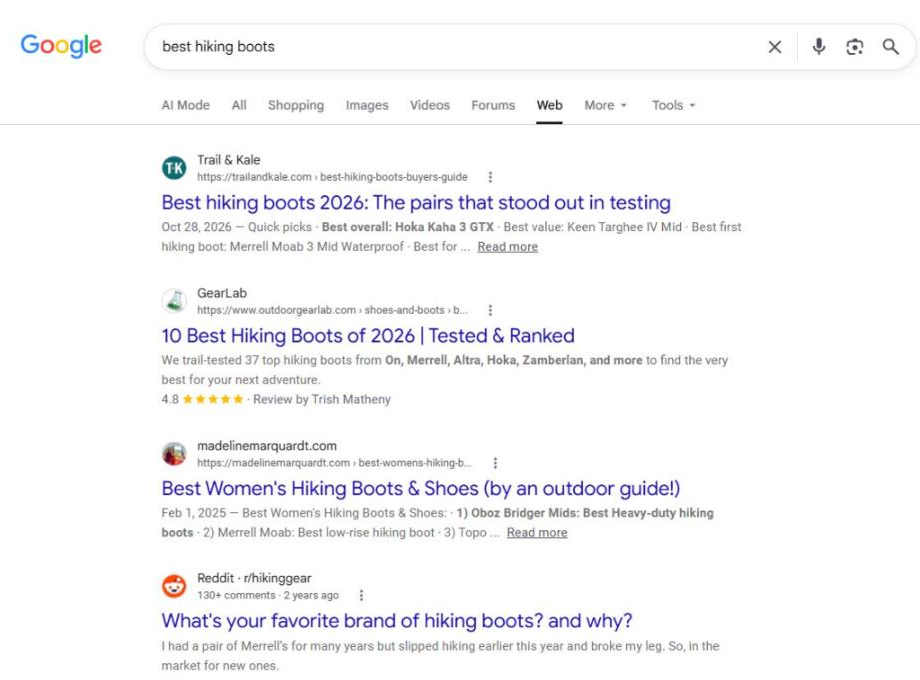
To try the Web view once, add &udm=14 to the end of a Google results address in the address bar, then press Enter. To keep your old default, skip step 3. Chrome then uses Google Web only when you type its shortcut, web, in the address bar.
If you cannot make a site search the default on a work or school device, your administrator may manage that setting. Chrome also limits custom defaults in some Guest profiles.
How do you hide AI Overviews in Chrome on a phone?
To use Google Web in Chrome on Android or iPhone, first visit TenBlueLinks.org. Visiting it adds Google Web to the search engines Chrome lets you choose.
Google Web sends each search to Google’s Web view, so the AI box does not appear. Chrome on a phone will not let you add your own search engine, which is why this visit is needed.
- Open TenBlueLinks.org in Chrome on your phone.
- Open a new tab and search Google for any word. Do not skip this search, because Chrome needs it before Google Web appears in the list.
- Tap the menu button, at the top right on Android or the bottom right on iPhone. Tap Settings, then Search engine, and a list of search engines opens.
- Under Recently visited, tap Google Web. Your next search from the address bar opens Google’s Web results.
Chrome shows TenBlueLinks.org as the place it got Google Web from, but your searches still go straight to Google.
What does a hide AI Overviews Chrome extension do?
A hide AI Overviews extension hides the AI box each time a Google results page opens, without changing your search. Other extensions change the search you send to Google instead of hiding part of the page.
Hide Google AI Overviews and Mode had 300,000 users when its Chrome Web Store page was checked on 12 November 2026. Its developer says it simply hides the AI Overview and AI Mode parts of the page. The extension needs an update each time Google changes its CSS, the code that sets how the page looks.

Pick Hide Google AI Overviews and Mode if you only want the AI panels gone from Google’s normal results page.
Disable AI Mode & AI Overview had 20,000 users on its Chrome Web Store page on the same date. Its developer says it can also hide People also ask, Google’s box of related questions, and that all changes happen in your browser.
Pick Disable AI Mode & AI Overview if you also want People also ask gone. Its listing also describes a mode that adds -ai to each search you make.
How do you keep a hiding extension safe?
Give a hiding extension access only to the Google Search site you use, and remove it when you no longer need it.
Site access is the Chrome setting that decides which websites an extension can read and change. To find it, click the More menu at the top right of Chrome, then Extensions, then Manage extensions.
Click Details on the extension. Next to “Allow this extension to read and change all your data on websites you visit,” choose On specific sites. The extension then runs only on the Google Search pages you list.
If Chrome’s Enhanced protection is on, Chrome warns you before you install an extension it does not trust.
To remove an extension, right-click its icon to the right of the address bar and choose Remove from Chrome.
What if the AI box comes back?
If the AI box comes back after it was hidden, Google may have changed its page, and your extension may need an update.
If an extension does nothing on a Google page, open its site access settings and check that the page's address is on the list. Add only the Google Search address you use.
If the box still appears, check the extension’s Chrome Web Store page for an update.
Frequently asked questions
Does adding -AI to a search always work?
No. Adding -AI to the end of a search sometimes skips the overview, but it does not work on every search.
Why do some searches show no AI Overview?
Google shows an AI Overview only when its systems decide a summary adds something to the normal results. Many searches never show one.
Sources
- Google Search Help: AI Overviews in Google Search
- Google Chrome Help: Set your default search engine and site search shortcuts
- Chrome Web Store Help: Install and manage extensions
- TenBlueLinks: Set Google Web as the default in mobile Chrome
- Chrome Web Store: Hide Google AI Overviews and Mode
- Chrome Web Store: Disable AI Mode and AI Overview
- Tom’s Guide: Set up Web-only Google results in Chrome
- Built In: How to turn off Google AI Overviews
Topics
- hide google ai overviews chrome extension

Xtrusio
AI visibility research
Xtrusio is the Perception Engine for B2B brands.
Free check
See how AI engines answer about you
Get your free AI visibility check
Keep reading
 Technical SEO · 15 November 2026 · 5 min read
Building AI Agents: A Plain Guide to Your First Agent
Build a bounded AI agent with one safe tool and run four local Python tests before you connect a real model. Technical SEO · 15 November 2026 · 4 min read
Duck.ai: How Private Is DuckDuckGo’s AI Chat?
See what Duck.ai shares with AI providers, how chat history and sync work, and what changes when you upload a file. Technical SEO · 14 November 2026 · 5 min read