Google AI Mode History: How to Find, Manage or Delete It
Short answer
Your Google AI Mode history is saved in your Google Account. On a computer, open AI Mode and select AI Mode history on the left. In the Google app, open the navigation drawer and look for Search threads. Use More, then Delete for one search or Delete all for everything. To remove the activity completely, delete the matching entry from Google Search history too.

The last step matters. Google says removing a conversation from the AI Mode list does not remove the corresponding search from regular Search history. A copy may also remain visible in My Activity for a short time before Google removes it automatically.
Before you start
- Use the signed-in Google Account that you used for the searches.
- Have a computer or the Google app ready.
- At the end, you will have cleared the selected AI Mode history, checked the matching Search history and chosen how future activity is saved.
Where Google saves AI Mode history
Google ties AI Mode history to the Google Account you use for Search. The history list lets you reopen earlier searches and continue a conversation. It is separate from the wider Search activity shown in Google My Activity.
Google recommends turning on Web & App Activity for the full AI Mode experience. If history and personalized recommendations are off, AI Mode can still answer a new question, but it cannot pick up where you left off in an earlier search. Google is also changing some Search settings, so a label or menu location may differ slightly from the steps below.
Where to find AI Mode history and what each delete removes
Place or action | How to get there | What it changes | What can remain |
|---|---|---|---|
AI Mode on a computer | Open AI Mode, then select AI Mode history on the left | Shows searches saved to your account | Search activity remains in My Activity |
Chrome New Tab | Select AI Mode beside the search box, then AI Mode history | Shows the same account history | Chrome history and Search history are separate |
Google app | Open the navigation drawer, then Search threads | Shows saved AI Mode conversations | App layouts can change |
Delete | More, then Delete beside one item | Removes that item from the AI Mode list | The matching Search history entry can remain |
Delete all | More, then Delete all | Clears the AI Mode history list | Search history can still hold the activity |
Google My Activity | Open myactivity.google.com and delete the Search activity | Removes the remaining account activity | A deleted copy may take up to 24 hours to disappear |
The computer and Chrome paths come from Google Help, checked 3 November 2026. The current Google app path was reported during a mobile rollout and may move again as the app changes.
Use Xtrusio across ChatGPT, Claude, Gemini, Perplexity, Grok, Google AI Overviews and Google AI Mode
Clearing your history changes what Google can use for your personal AI Mode experience. That personal result is not a brand check.
Compare the same buyer questions, brand mentions and cited pages across those engines without relying on one person's history.
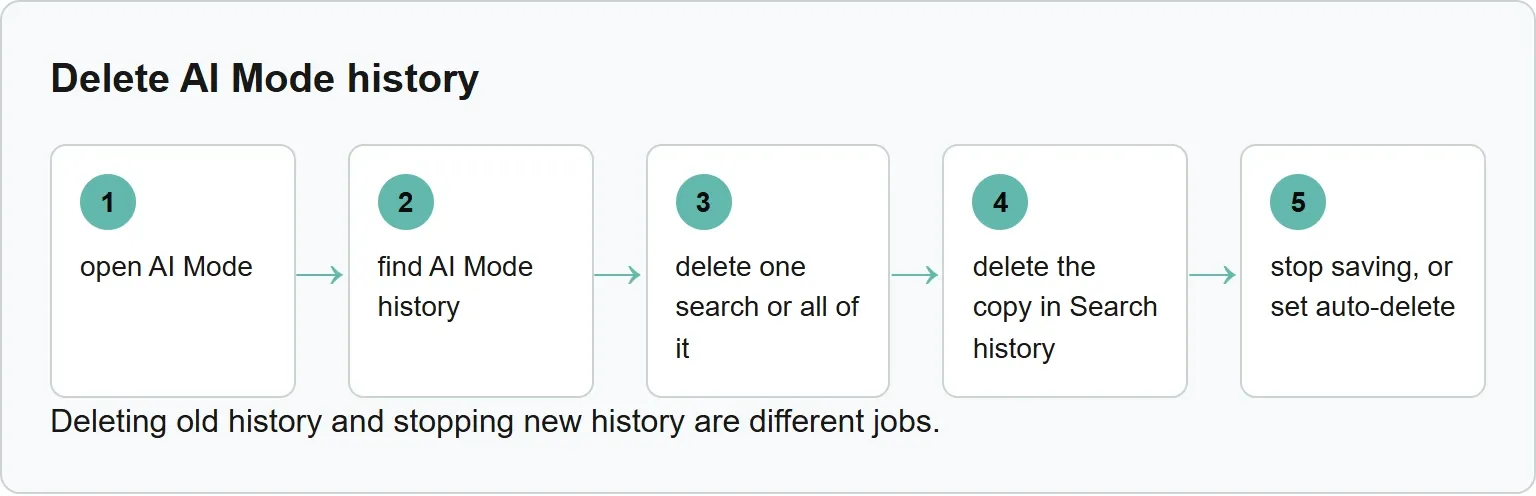
Step 1: open AI Mode
On a computer, go to google.com/ai. You can also enter a question at Google Search and switch to AI Mode. In Chrome, open a New Tab page and select AI Mode to the right of the search box.
On a phone, open the Google app and enter AI Mode from its home screen. Use the same signed-in account on each route.
Step 2: find AI Mode history
On a computer, select AI Mode history on the left. Google says this is where you can view past searches saved in your account. In Chrome, the history link appears on the left after you open AI Mode from a New Tab page.
In the Google app, open the navigation drawer. A Search threads bar shows saved conversations, and the settings gear beside it opens the fuller My Activity view. That mobile arrangement was widely available on iOS and Android, according to a Google news site. If you do not see it, open AI Mode first and look for the history icon or menu.
Step 3: delete one search or all of it
Open the AI Mode history list and choose the conversation you want to remove. For one search, select More beside the history item, then Delete. To clear the entire list, select More, then Delete all.
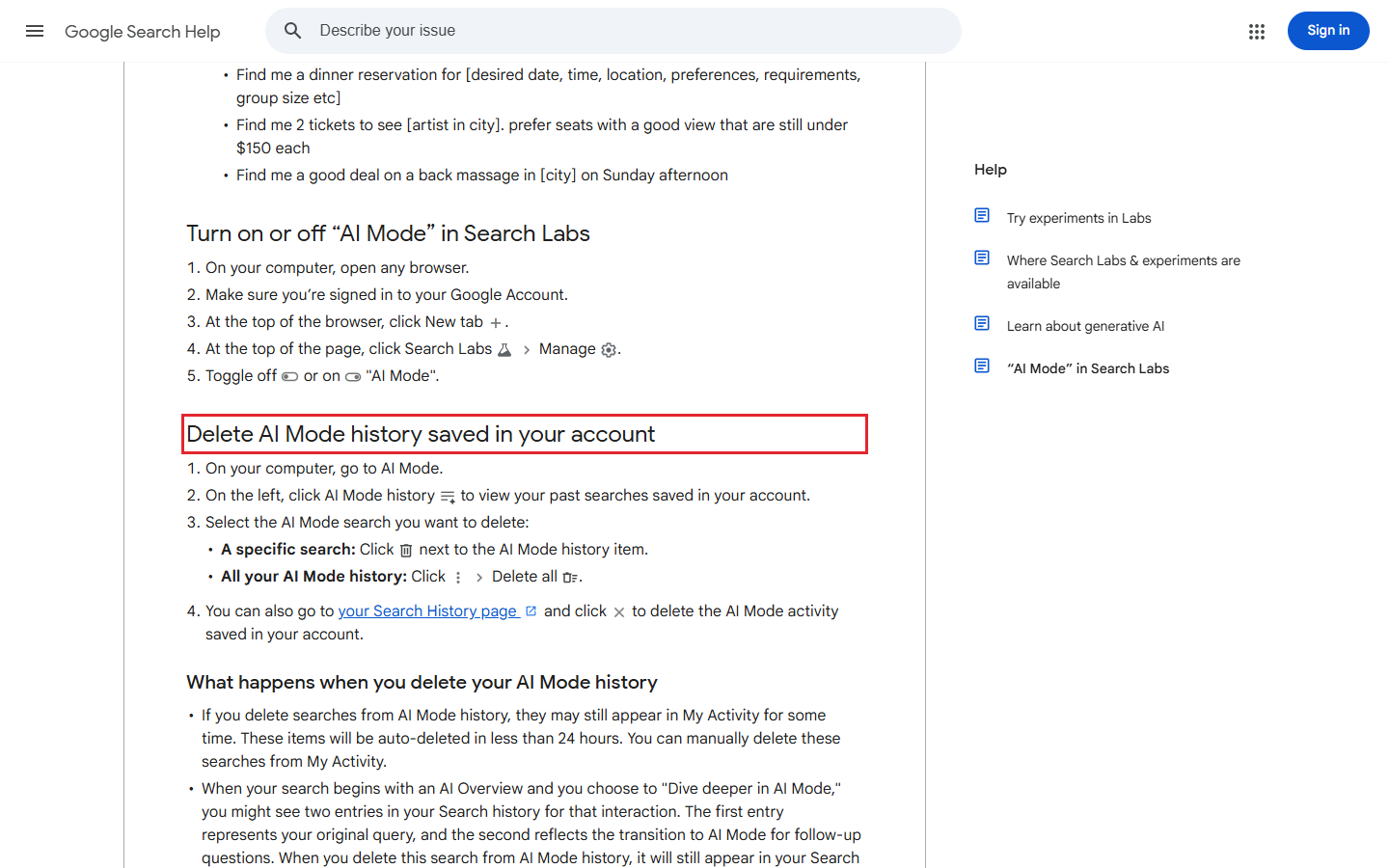
This removes old conversations from the visible AI Mode list. It is not the last step if your goal is to remove the underlying search activity from the account.
Step 4: delete the copy in Search history
Open myactivity.google.com or Google's Search History page. Find the matching Search activity and delete it there. This second action removes the copy that is outside the AI Mode conversation list.
What happens when you delete your AI Mode history
“If you delete searches from AI Mode history, they may still appear in the ‘My Activity’ page for some time. These items are auto-deleted within 24 hours. You can also delete them manually from the ‘My Activity’ page.” “When you delete a search from the AI Mode history, it still appears in your Search history. To completely delete a specific search, delete it from your Search history.”
Source: Google Chrome Help, “Use AI Mode in Chrome”, checked 3 November 2026.
If a search began with an AI Overview and you selected Dive deeper in AI Mode, Google says Search history may contain two entries. One records the original query and the other records the move into AI Mode. Check both before deciding the activity is gone.
Step 5: stop saving, or set auto-delete
Deleting old history and stopping new history are different jobs.
- Open My Activity.
- Open Web & App Activity. Some accounts use the name Search Services History; Google says it is updating Search settings, so the label may differ.
- Use that activity control to stop future saving. Change personalized recommendations separately if you do not want AI Mode to use saved activity for personalization.
- If your account shows Auto-delete, choose one of the periods offered there. This guide does not guess a universal click path or the available periods because the saved Help pages do not list them.
AI Mode still works when history and personalized recommendations are off, but you cannot reopen and continue earlier searches. Google does not provide a switch that removes AI Mode from Search entirely, so avoiding AI Mode is different from controlling what it saves.
If it does not work
Use the matching fix below.
- History is not showing yet: enable history and personalized recommendations for the account, then check again.
- You are in the wrong account: switch to the account used for the original search.
- It is a managed Workspace account: if Search and Assistant are off, only the Workspace administrator can enable Search history.
- An older item is missing: check the account's Auto-delete setting because a deletion schedule may already have removed it.
AI Mode memory and Personal Intelligence
History is not the only source AI Mode can use for personalization. Google says Personal Intelligence can refer to previous searches and other activity saved in Search Services History. AI Mode can also remember details you tell it and use them in later answers.
You can tell AI Mode to remember or forget a specific detail. You can also opt out of personalization by changing the personalized recommendations setting. Google says AI Mode memory is available in the United States in English, so readers elsewhere may not have the same controls.
The visible conversation list, Search activity in My Activity, and personalization or memory are separate controls. Clearing one does not automatically mean the other two are empty or disabled.
Work, school and child accounts
If Search and Assistant are turned off for the organization, Search history is unavailable and only a Workspace administrator can enable it. That is why a work or school account may not show the same history options as a personal account.
For a supervised child's Google Account, the relevant settings are managed through Family Link. A parent or guardian may need to change the control there rather than on the child's device.
Sources
Frequently asked questions
Is deleted AI Mode history gone immediately?
Not always. Google says a deleted item may remain visible in My Activity for a while and is removed automatically within 24 hours. You can delete the My Activity entry manually if you want it gone sooner.
Does deleting AI Mode history also delete Search history?
No. Google says the search can still appear in Search history. Delete the matching activity from Google's Search History page or My Activity as a second step.
Can I turn Google AI Mode off?
Google does not offer a general switch that removes AI Mode from Search. You can avoid using it and turn off history or personalization settings so new activity is not saved in the same way.
Where is AI Mode history on iPhone?
Open the Google app and use the navigation drawer, then look for Search threads. If that path is not visible, enter AI Mode first and look for the history icon. Google changes app layouts, so the exact icon can move. Get your free AI visibility check.
Topics
- google ai mode history

Xtrusio
AI visibility research
Xtrusio is the Perception Engine for B2B brands.
Free check
See how AI engines answer about you
Get your free AI visibility check
Keep reading
 AI Tools Guide · Nov 3, 2026 · 6 min read
Claude Code for Data Analysis: From CSV to Checked Findings
Use Claude Code to profile a CSV, write a repeatable analysis script and verify row counts, blanks, duplicates and totals before sharing findings. AI Tools Guide · Nov 3, 2026 · 7 min read
Goodie AI: What It Does and How It Compares to Alternatives
See what Goodie AI does, its current plans, cost per tracked prompt, and how Xtrusio, Peec AI and Profound compare. AI Tools Guide · Nov 3, 2026 · 8 min read